Python+selenium自动化,Allure包不生成index.html文件,解决方法

部署运行你感兴趣的模型镜像

查看ui自动化生成的html报告。pytest+allure只生成了xml报告--json格式的数据,没有生成html的index报告。

场景:

  1. 电脑配置了allure的环境变量,配置在系统变量下。

  2. pycharm安装了allure-pytest包

  3. 运行脚本,生成xml类型报告。没有html的报告

排查:
1.cmd输入allure --version,查看是安装成功
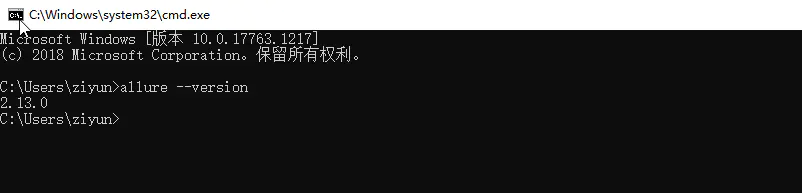
image.png

2.pycharm输入pip freeze,查看包是否配置成功
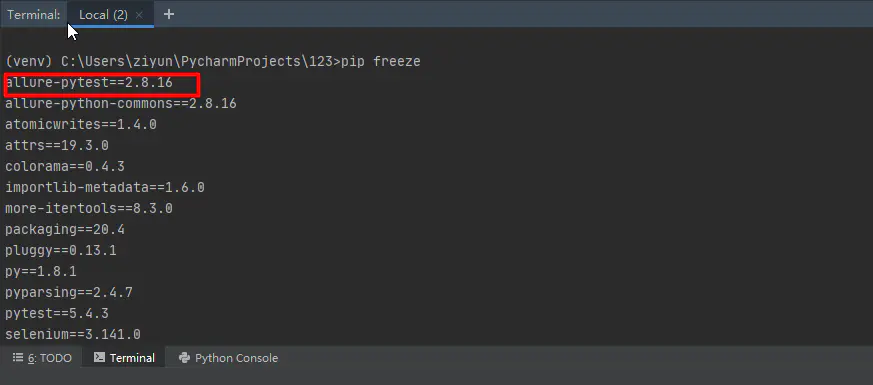
image.png

都显示安装、配置成功

3.pycharm软件Terminal中输入allure(免费领取Python自动化学习资料  工具,面试宝典面试技巧,加QQ群,785128166,群内还会大佬技术交流)
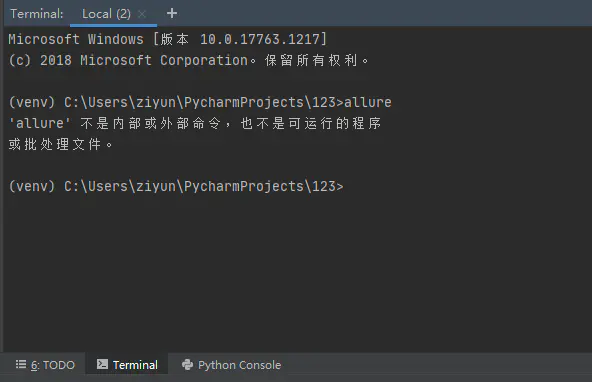
image.png

怀疑是pycharm软件哪里配置除了问题,排查浪费了N多时间。

最终总算是配置好了~
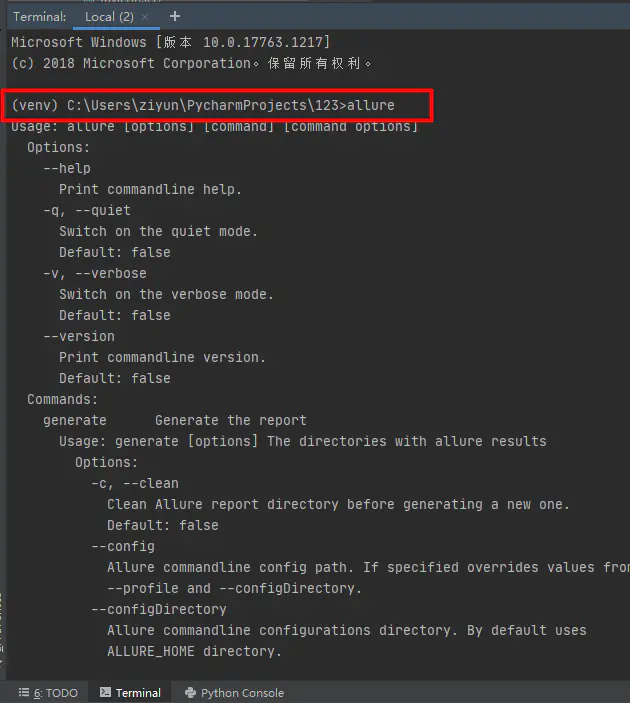
 

image.png

解决方法:

  1. cmd = "allure generate ./Report/xml/ -o ./Report/html/ --clean"
    上面这行代码不会直接执行,脚本里面需要shll命令去执行


shell =Shell.Shell()
shell.invoke(cmd)
import subprocess


class Shell:
    @staticmethod
    def invoke(cmd):
        output, errors = subprocess.Popen(cmd, shell=True, stdout=subprocess.PIPE, stderr=subprocess.PIPE).communicate()
        o = output.decode("utf-8")
        return o
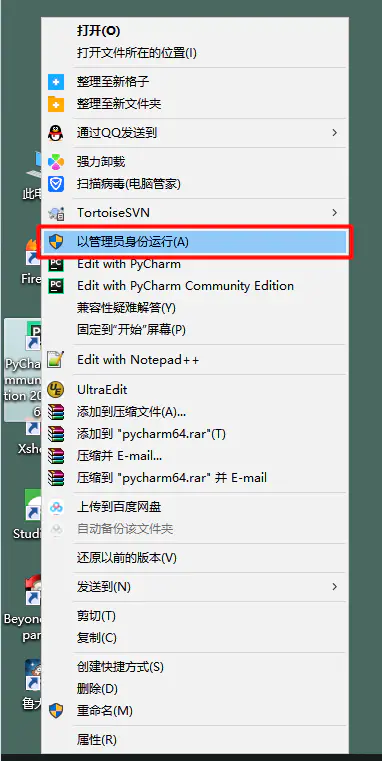
  1. 软件右键,用管理员权限运行pycharm,完美解决问题。


您可能感兴趣的与本文相关的镜像

Python3.9

Python3.9

Conda
Python

Python 是一种高级、解释型、通用的编程语言,以其简洁易读的语法而闻名,适用于广泛的应用,包括Web开发、数据分析、人工智能和自动化脚本

### 搭建基于 Selenium、Pytest 和 Allure自动化测试框架 搭建一个基于 **Selenium**、**Pytest** 和 **Allure** 的自动化测试框架,可以有效提升 UI 自动化测试的效率和可维护性。以下是详细的实现步骤: #### 1. 环境准备 确保系统中已安装以下依赖: - Python(推荐 3.7 及以上版本) - Selenium(用于浏览器自动化) - Pytest(用于测试框架管理) - Allure-pytest(用于生成测试报告) - WebDriver(如 ChromeDriver、GeckoDriver 等) 可以通过以下命令安装相关库: ```bash pip install selenium pytest allure-pytest ``` 下载并配置相应的浏览器驱动(如 ChromeDriver),确保其路径已添加到系统环境变量中。 #### 2. 项目结构设计 合理的项目结构有助于提高可维护性。以下是一个推荐的目录结构: ``` project/ │ ├── tests/ # 测试用例目录 │ └── test_login.py # 示例测试用例 │ ├── pages/ # Page Object 模式页面类 │ └── login_page.py # 登录页面对象 │ ├── utils/ # 工具类 │ └── driver_utils.py # 浏览器驱动工具 │ ├── config/ # 配置文件 │ └── config.yaml # 配置信息 │ ├── reports/ # Allure 测试报告输出目录 │ ├── conftest.py # Pytest 全局 fixture │ └── pytest.ini # Pytest 配置文件 ``` #### 3. 配置 Pytest 在项目根目录下创建 `pytest.ini` 文件,配置 Allure 输出路径和测试用例搜索路径: ```ini [pytest] addopts = --alluredir=./reports --clean-alluredir testpaths = tests ``` #### 4. 使用 Page Object 模式 Page Object 模式可以提高代码的可读性和可维护性。例如,定义一个登录页面类: ```python # pages/login_page.py from selenium.webdriver.common.by import By class LoginPage: def __init__(self, driver): self.driver = driver def enter_username(self, username): self.driver.find_element(By.ID, "username").send_keys(username) def enter_password(self, password): self.driver.find_element(By.ID, "password").send_keys(password) def click_login(self): self.driver.find_element(By.ID, "login-btn").click() ``` #### 5. 编写测试用例 使用 Pytest 编写测试用例,并结合 Selenium 进行浏览器操作: ```python # tests/test_login.py from pages.login_page import LoginPage from utils.driver_utils import get_driver def test_login(): driver = get_driver() login_page = LoginPage(driver) login_page.enter_username("testuser") login_page.enter_password("password123") login_page.click_login() assert "dashboard" in driver.current_url driver.quit() ``` #### 6. 配置 Allure 报告 Allure 提供了丰富的测试报告功能。运行测试后,使用以下命令生成报告: ```bash allure generate ./reports -o ./allure-report --clean ``` 可以在浏览器中打开 `allure-report/index.html` 查看详细的测试报告。 #### 7. 使用 Conftest.py 管理全局 Fixture 在 `conftest.py` 中定义全局 fixture,例如自动启动和关闭浏览器: ```python # conftest.py import pytest from utils.driver_utils import get_driver @pytest.fixture(scope="function") def driver(): driver = get_driver() yield driver driver.quit() ``` #### 8. 运行测试 使用以下命令运行测试并生成 Allure 报告: ```bash pytest tests/test_login.py allure serve reports ``` --- ###
评论
成就一亿技术人!
拼手气红包6.0元
还能输入1000个字符
 
红包 添加红包
表情包 插入表情
 条评论被折叠 查看
添加红包

请填写红包祝福语或标题

红包个数最小为10个

红包金额最低5元

当前余额3.43前往充值 >
需支付:10.00
成就一亿技术人!
领取后你会自动成为博主和红包主的粉丝 规则
hope_wisdom
发出的红包
实付
使用余额支付
点击重新获取
扫码支付
钱包余额 0

抵扣说明:

1.余额是钱包充值的虚拟货币,按照1:1的比例进行支付金额的抵扣。
2.余额无法直接购买下载,可以购买VIP、付费专栏及课程。

余额充值