


C# NPOI 在Word进行表格操作 生成表格 特定位置插入表格 合并表格 替换文字 插入图片
NPOI 在Word进行表格操作
NPOI大多使用在Excel的导出上,Word导出比较少,鉴于工作需要搜罗了一下各帖子,完整用Word导出了多个复杂表格,现在根据最近的工作做一下总结
生成表格
生成普通表格
internal static XWPFDocument doc =new XWPFDocument();
XWPFTable t = doc.CreateTable(3,2);//行 列
t.Width = 5000;//设置列宽
// 添加表头
XWPFTableRow headerRow = t.GetRow(0);
headerRow.GetCell(0).SetText("列1");
headerRow.CreateCell().SetText("列2");
//添加表格行内容
XWPFTableRow row1 = t.CreateRow();
row1.GetCell(0).SetText("苹果1");//给内容赋值
row1.GetCell(1).SetText("香蕉1");//给内容赋值

XWPFTableRow row2 = t.CreateRow();
row1.GetCell(0).SetText("苹果2");//给内容赋值
row1.GetCell(1).SetText("香蕉2");//给内容赋值
效果图:

生成复杂表格
首先需要一个帮助类
//帮助类
class NpoiWordParagraphTextStyleHelper
{
    private static NpoiWordParagraphTextStyleHelper _exportHelper;

    public static NpoiWordParagraphTextStyleHelper _
    {
        get => _exportHelper ?? (_exportHelper = new NpoiWordParagraphTextStyleHelper());
        set => _exportHelper = value;
    }
    /// <summary>
    /// 创建word文档中的段落对象和设置段落文本的基本样式
    /// </summary>
    /// <param name="document">document文档对象</param>
    /// <param name="fillContent">段落第一个文本对象填充的内容</param>
    /// <param name="isBold">是否加粗</param>
    /// <param name="fontSize">字体大小</param>
    /// <param name="fontFamily">字体</param>
    /// <param name="paragraphAlign">段落排列(左对齐,居中,右对齐)</param>
    /// <param name="isStatement">是否在同一段落创建第二个文本对象(解决同一段落里面需要填充两个或者多个文本值的情况,多个文本需要自己拓展,现在最多支持两个)</param>
    /// <param name="secondFillContent">第二次声明的文本对象填充的内容,样式与第一次的一致</param>
    /// <param name="fontColor">字体颜色--十六进制</param>
    /// <param name="isItalic">是否设置斜体(字体倾斜)</param>
    /// <returns></returns>
    public XWPFParagraph ParagraphInstanceSetting(XWPFDocument document, string fillContent, bool isBold, int fontSize, string fontFamily, ParagraphAlignment paragraphAlign, bool isStatement = false, string secondFillContent = "", string fontColor = "000000", bool isItalic = false)
    {
        XWPFParagraph paragraph = document.CreateParagraph();//创建段落对象
        paragraph.Alignment = paragraphAlign;//文字显示位置,段落排列(左对齐,居中,右对齐)

        XWPFRun xwpfRun = paragraph.CreateRun();//创建段落文本对象
        xwpfRun.IsBold = isBold;//文字加粗
        xwpfRun.SetText(fillContent);//填充内容
        xwpfRun.FontSize = fontSize;//设置文字大小
        xwpfRun.IsItalic = isItalic;//是否设置斜体(字体倾斜)
        xwpfRun.SetColor(fontColor);//设置字体颜色--十六进制
        xwpfRun.SetFontFamily(fontFamily, FontCharRange.None); //设置标题样式如:(微软雅黑,隶书,楷体)根据自己的需求而定
        if (!isStatement) return paragraph;
        XWPFRun secondXwpfRun = paragraph.CreateRun();//创建段落文本对象
        secondXwpfRun.IsBold = isBold;//文字加粗
        secondXwpfRun.SetText(secondFillContent);//填充内容
        secondXwpfRun.FontSize = fontSize;//设置文字大小
        secondXwpfRun.IsItalic = isItalic;//是否设置斜体(字体倾斜)
        secondXwpfRun.SetColor(fontColor);//设置字体颜色--十六进制
        secondXwpfRun.SetFontFamily(fontFamily, FontCharRange.None); //设置标题样式如:(微软雅黑,隶书,楷体)根据自己的需求而定
        return paragraph;
         /// <summary>
    /// 创建Word文档中表格段落实例和设置表格段落文本的基本样式(字体大小,字体,字体颜色,字体对齐位置)
    /// </summary>
    /// <param name="document">document文档对象</param>
    /// <param name="table">表格对象</param>
    /// <param name="fillContent">要填充的文字</param>
    /// <param name="paragraphAlign">段落排列(左对齐,居中,右对齐)</param>
    /// <param name="textPosition">设置文本位置(设置两行之间的行间,从而实现表格文字垂直居中的效果),从而实现table的高度设置效果 </param>
    /// <param name="isBold">是否加粗(true加粗,false不加粗)</param>
    /// <param name="fontSize">字体大小</param>
    /// <param name="fontColor">字体颜色--十六进制</param>
    /// <param name="isItalic">是否设置斜体(字体倾斜)</param>
    /// <returns></returns>
     public XWPFParagraph SetTableParagraphInstanceSetting(XWPFDocument document, XWPFTable table, string fillContent,
        ParagraphAlignment paragraphAlign, int textPosition = 24, bool isBold = false, int fontSize = 10, string fontColor = "000000", bool isItalic = false)
    {
        var para = new CT_P();
        //设置单元格文本对齐
        para.AddNewPPr().AddNewTextAlignment();
         XWPFParagraph paragraph = new XWPFParagraph(para, table.Body);//创建表格中的段落对象
        paragraph.Alignment = paragraphAlign;//文字显示位置,段落排列(左对齐,居中,右对齐)
                                             //paragraph.FontAlignment =Convert.ToInt32(ParagraphAlignment.CENTER);//字体在单元格内显示位置与 paragraph.Alignment效果相似

        XWPFRun xwpfRun = paragraph.CreateRun();//创建段落文本对象
        xwpfRun.SetText(fillContent);
        xwpfRun.FontSize = fontSize;//字体大小
        xwpfRun.SetColor(fontColor);//设置字体颜色--十六进制
        xwpfRun.IsItalic = isItalic;//是否设置斜体(字体倾斜)
        xwpfRun.IsBold = isBold;//是否加粗
        xwpfRun.SetFontFamily("宋体", FontCharRange.None);//设置字体(如:微软雅黑,华文楷体,宋体)
        //xwpfRun.SetTextPosition(textPosition);//设置文本位置(设置两行之间的行间),从而实现table的高度设置效果
        //xwpfRun.SetTextPosition(textPosition);//设置文本位置(设置两行之间的行间),从而实现table的高度设置效果
        return paragraph;
    }
}
}
然后进行创建表格
XWPFTable t = doc.CreateTable(4, 3);//行 列
t.GetCTTbl().AddNewTblPr().tblLayout = new CT_TblLayoutType() { type = ST_TblLayoutType.@fixed };//自由设置宽度
t.Width = 5000;//总宽度
t.SetColumnWidth(0, (ulong)1000); /* 设置列宽 */
t.SetColumnWidth(0, (ulong)2000); /* 设置列宽 */
t.SetColumnWidth(0, (ulong)2000); /* 设置列宽 */
t.GetRow(0).GetCell(0).SetParagraph(NpoiWordParagraphTextStyleHelper._.SetTableParagraphInstanceSetting(doc, t, "序号", ParagraphAlignment.CENTER, 24, true));//列标题行
t.GetRow(0).GetCell(1).SetParagraph(NpoiWordParagraphTextStyleHelper._.SetTableParagraphInstanceSetting(doc, t, "序列号", ParagraphAlignment.CENTER, 24, true));//列标题行
t.GetRow(0).GetCell(2).SetParagraph(NpoiWordParagraphTextStyleHelper._.SetTableParagraphInstanceSetting(doc, t, "结论", ParagraphAlignment.CENTER, 24, true));//列标题行

t.GetRow(1).GetCell(0).SetParagraph(NpoiWordParagraphTextStyleHelper._.SetTableParagraphInstanceSetting(doc, t, "1", ParagraphAlignment.CENTER, 24, true));//数据行
t.GetRow(1).GetCell(1).SetParagraph(NpoiWordParagraphTextStyleHelper._.SetTableParagraphInstanceSetting(doc, t, "123456789", ParagraphAlignment.CENTER, 24, true));//数据行
t.GetRow(1).GetCell(2).SetParagraph(NpoiWordParagraphTextStyleHelper._.SetTableParagraphInstanceSetting(doc, t, "true", ParagraphAlignment.CENTER, 24, true));//数据行

t.GetRow(2).GetCell(0).SetParagraph(NpoiWordParagraphTextStyleHelper._.SetTableParagraphInstanceSetting(doc, t, "3", ParagraphAlignment.CENTER, 24, true));//数据行
t.GetRow(2).GetCell(1).SetParagraph(NpoiWordParagraphTextStyleHelper._.SetTableParagraphInstanceSetting(doc, t, "234567890", ParagraphAlignment.CENTER, 24, true));//数据行
t.GetRow(2).GetCell(2).SetParagraph(NpoiWordParagraphTextStyleHelper._.SetTableParagraphInstanceSetting(doc, t, "false", ParagraphAlignment.CENTER, 24, true));//数据行

t.GetRow(3).GetCell(0).SetParagraph(NpoiWordParagraphTextStyleHelper._.SetTableParagraphInstanceSetting(doc, t, "3", ParagraphAlignment.CENTER, 24, true));//数据行
t.GetRow(3).GetCell(1).SetParagraph(NpoiWordParagraphTextStyleHelper._.SetTableParagraphInstanceSetting(doc, t, "234567890", ParagraphAlignment.CENTER, 24, true));//数据行
t.GetRow(3).GetCell(2).SetParagraph(NpoiWordParagraphTextStyleHelper._.SetTableParagraphInstanceSetting(doc, t, "false", ParagraphAlignment.CENTER, 24, true));//数据行
特定位置插入表格
在word文档中插入,适用于在模板文件内修改的操作。
主要做法是 通过占位符在模板文件下标记位置,遍历获取位置信息。
//获取占位符位置
string substitute = "{{PulseVoltage}}";//占位符自行设置,word中添加
foreach (var para in doc.Paragraphs.ToArray())
{
     var text = para.Text;
     if (text.Equals(substitute))
     {
         para.ReplaceText("{{PulseVoltage}}", Environment.NewLine);//占位符替换成换行
         int pos = doc.GetPosOfParagraph(para);//获取占位符位置
         XWPFTable t = doc.CreateTable(4,3,pos);//在该位置插入表格
         //编写表格内容 具体写法看上文
     }
}
在表格内进行合并操作
水平合并
//水平合并
t.GetRow(0).MergeCells(0, 6);//输入行、合并的列
竖直合并
 /// <summary>
 /// 合并表格
 /// </summary>
 /// <param name="table"></param>
 /// <param name="fromCol"></param>
 /// <param name="toCol"></param>
 /// <param name="fromRow"></param>
 /// <param name="toRow"></param>
 /// <returns></returns>
 private XWPFTableCell MYMergeCells(XWPFTable table, int fromCol, int toCol, int fromRow, int toRow)
 {
     for (int rowIndex = fromRow; rowIndex <= toRow; rowIndex++)
     {
         if (fromCol < toCol)
         {
             table.GetRow(rowIndex).MergeCells(fromCol, toCol);
         }
         XWPFTableCell rowcell = table.GetRow(rowIndex).GetCell(fromCol);
         CT_Tc cttc = rowcell.GetCTTc();
         if (cttc.tcPr == null)
         {
             cttc.AddNewTcPr();
         }
         if (rowIndex == fromRow)
         {
             // The first merged cell is set with RESTART merge value
             rowcell.GetCTTc().tcPr.AddNewVMerge().val = ST_Merge.restart;
         }
         else
        {
             // Cells which join (merge) the first one, are set with CONTINUE
             rowcell.GetCTTc().tcPr.AddNewVMerge().val = ST_Merge.@continue;
         }
     }
     table.GetRow(fromRow).GetCell(fromCol).SetVerticalAlignment(XWPFTableCell.XWPFVertAlign.CENTER);
     table.GetRow(fromRow).GetCell(fromCol).Paragraphs[0].Alignment = ParagraphAlignment.CENTER;
     return table.GetRow(fromRow).GetCell(fromCol);
 }
合并操作有两点注意点:
1.先合并再赋值 先赋值后,表格会被修改,在合并之后的表格需要重新赋值
2.纵横都需要合并的时候,先合并竖直方向,再合并横向,如若不然 先横向合并之后列被打乱,无法实现后续的纵向合并
3.(新增)纵向合并合并后行数不变,横向合并行数改变
eg:
纵向合并0列2-4行,5-7行
MYMergeCells(t, 0, 0, 2,4);
MYMergeCells(t, 0, 0, 5, 7);
横向合并0行1-4列,5-8列
t.GetRow(0).MergeCells(1, 4);//1-4列合并后成为0行1列
t.GetRow(0).MergeCells(2, 5);//合并
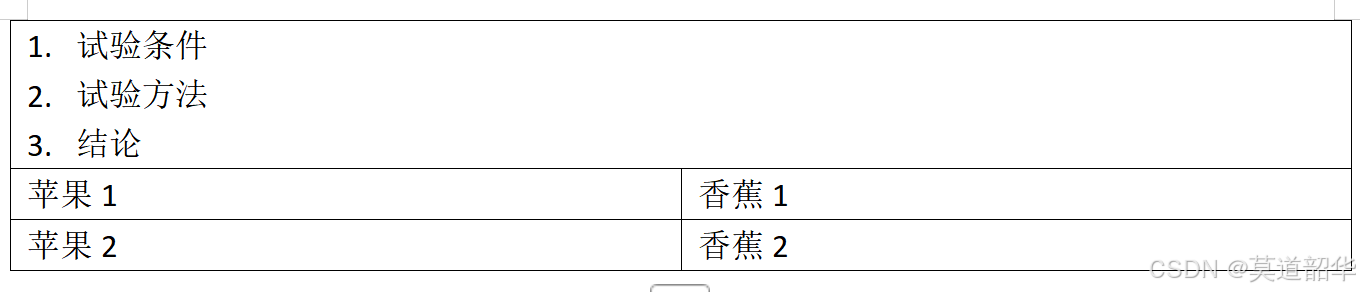
单元格内文字换行
本来想物理换行,直接整换行符,但是换行符不起效果
后面发现只能在段落内换行 插入段落
XWPFParagraph p_result = doc.CreateParagraph();
var run0 = p_result.CreateRun();
run0.SetText("1.  试验条件");
run0.AddBreak(BreakClear.ALL);//换行
run0.AppendText("2.  试验方法");
run0.AddBreak(BreakClear.ALL);
run0.AppendText("3.结论");
t.GetRow(0).GetCell(0).SetParagraph(p_result);//添加段落至单元格
效果图:
插入图片
/// <summary>
/// 插入图片
/// </summary>
/// <param name="para"></param>
/// <param name="imgpath"></param>
private void InsertImg(XWPFRun run, string imgpath,string imgName)
{
//XWPFRun run = para.CreateRun();
using (FileStream fsImg = new FileStream(imgpath, FileMode.OpenOrCreate, FileAccess.Read))
{
    if (imgName.Equals("after"))
    {
         run.AddPicture(fsImg, (int)NPOI.XWPF.UserModel.PictureType.PNG, "before.png", (int)(124.0 * 9525), (int)(164.0 * 9525));  //长和宽必须乘上9525

    }
    else
    {
        run.AddPicture(fsImg, (int)NPOI.XWPF.UserModel.PictureType.PNG, "before.png", (int)(718.0 * * 9525), (int)(173.0 * 9525));  //长和宽必须乘上9525
	}
  }
}
打开Word
需要打开模板文件的情况
 FileStream fileStream = new FileStream(ExampleFilePath, FileMode.Open, FileAccess.ReadWrite);
 doc = new XWPFDocument(fileStream);
生成Word
MemoryStream ms = new MemoryStream();
doc.Write(ms);





 扫一扫
扫一扫


 3103
3103

 被折叠的 条评论
为什么被折叠?
被折叠的 条评论
为什么被折叠?
 到【灌水乐园】发言





