






AI书签管理工具开发全记录(五):前端管理基础框框搭建(Vue3+Element Plus)
前言 📝
在上一篇博客中,我们基于 Gin 框架搭建了后端 API 服务,实现了书签和分类的 CRUD 功能。现在,我们将使用 Vue3 和 Element Plus 搭建一个现代化的前端管理界面,为用户提供直观易用的操作体验。
1. 前端技术选型 🛠️
在众多前端框架中,我们选择了以下技术栈:
- Vue3:渐进式 JavaScript 框架,提供响应式和组件化开发
- Element Plus:基于 Vue3 的桌面端组件库
- Pinia:轻量级状态管理库
- Vue Router:官方路由管理库
- Axios:HTTP 请求库
- Vite:下一代前端构建工具
# 安装 Vue CLI
npm install -g @vue/cli

# 查看版本
vue --version
# @vue/cli 5.0.8
2. 项目创建与初始化 🚀
2.1 创建项目
使用 Vite 创建 Vue3 项目:
npx create-vite@latest web --template vue --yes
cd web
npm install
启动前端应用
npm run dev
启动成功后,访问http://localhost:5173
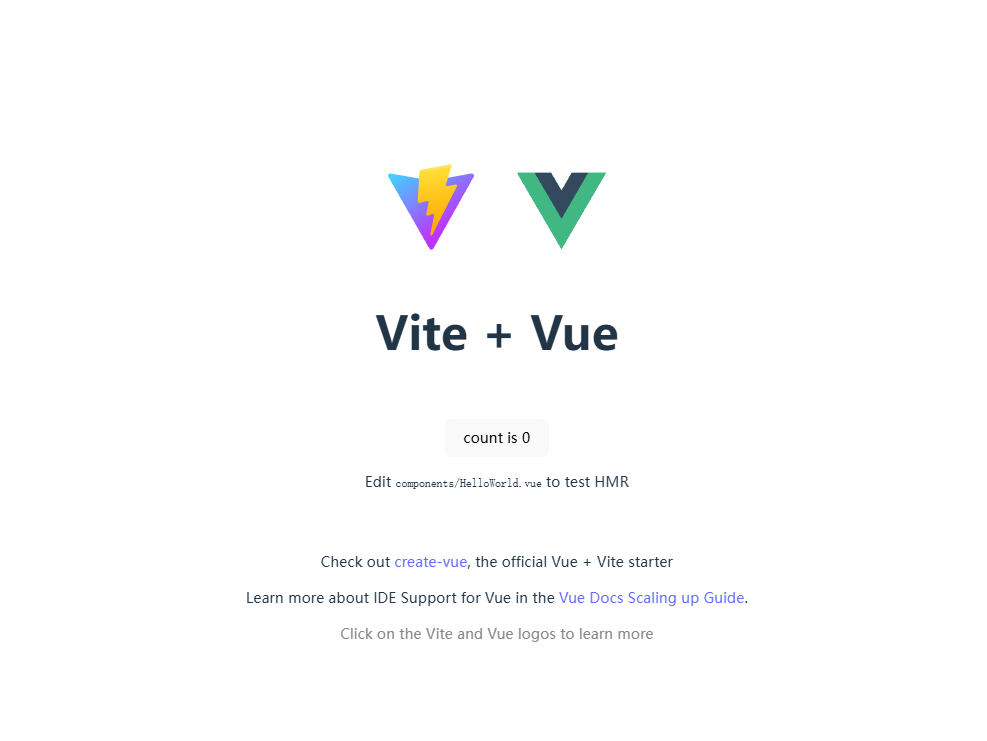
此时,vue项目已经正常工作了
2.2 配置路径别名
修改 vite.config.js,添加路径别名:
import { defineConfig } from "vite"
import vue from "@vitejs/plugin-vue"
import path from "path"

export default defineConfig({
  plugins: [vue()],
  resolve: {
    alias: {
      "/@": path.resolve(__dirname, "./src/")
    }
  }
})
2.3 配置代码格式化
安装 Prettier:
npm install --save-dev prettier
创建 .prettierrc 文件:
{
  "semi": false,
  "singleQuote": true,
  "trailingComma": "none"
}
在 VSCode 中配置保存时自动格式化。
3. 核心库集成 💻
3.1 安装 Element Plus
npm install element-plus
npm install -D unplugin-vue-components unplugin-auto-import
配置 vite.config.js:
import AutoImport from 'unplugin-auto-import/vite'
import Components from 'unplugin-vue-components/vite'
import { ElementPlusResolver } from 'unplugin-vue-components/resolvers'

export default defineConfig({
  plugins: [
    vue(),
    AutoImport({
      resolvers: [ElementPlusResolver()],
    }),
    Components({
      resolvers: [ElementPlusResolver()],
    }),
  ],
})
3.2 集成 Pinia 状态管理
安装 Pinia:
npm install pinia
在 main.js 中配置:
import { createApp } from 'vue'
import { createPinia } from 'pinia'
import App from './App.vue'

const app = createApp(App)
app.use(createPinia())
app.mount('#app')
创建示例 store (src/stores/counter.js):
import { defineStore } from 'pinia'

export const useCounterStore = defineStore('counter', {
  state: () => ({ count: 0 }),
  actions: {
    increment() {
      this.count++
    }
  }
})
3.3 集成 Vue Router
安装 Vue Router:
npm install vue-router@4
创建category和bookmark占位页面
创建src/views/category/index.vue
<template>
  <div>
    <h1>category</h1>
  </div>
</template>

<script setup></script>

<style scoped></style>
创建src/views/bookmark/index.vue
<template>
  <div>
    <h1>bookmark</h1>
  </div>
</template>

<script setup></script>

<style scoped></style>
创建路由配置 (src/router/index.js):
import { createRouter, createWebHistory } from 'vue-router'

const routes = [
  {
    path: '/bookmarks',
    name: 'Bookmarks',
    component: () => import('/@/views/bookmark/index.vue')
  },
  {
    path: '/categories',
    name: 'Categories',
    component: () => import('/@/views/category/index.vue')
  }
]

const router = createRouter({
  history: createWebHistory(),
  routes
})

export default router
3.4 集成 Axios
安装 Axios:
npm install axios
创建请求工具 (src/utils/request.js):
import axios from 'axios'

// 创建 axios 实例
const service = axios.create({
  baseURL: import.meta.env.VITE_API_BASE_URL,
  timeout: 10000
})

export default service
4. 全局样式与布局 🎨
4.1 全局样式配置
创建全局样式文件src/styles.css
* {
    margin: 0;
    padding: 0;
    box-sizing: border-box;
  }

  html, body, #app {
    height: 100%;
    margin: 0;
    overflow: hidden; /* 禁止整个页面滚动 */
  }
创建全局样式文件 src/styles/variables.scss存放一些额外的样式,可以存放变量
:root {
  --primary-color: #409EFF;
  --success-color: #67C23A;
  --warning-color: #E6A23C;
  --danger-color: #F56C6C;
  --info-color: #909399;

  --sidebar-width: 200px;
  --header-height: 60px;
}

#app {
  display: flex;
  flex-direction: column;
  background-color: #f5f7fa;
}
安装sass-embedded
npm install -D sass-embedded
在 `vite.config.js` 中配置全局 SCSS 变量:

```javascript
export default defineConfig({
  css: {
    preprocessorOptions: {
      scss: {
        additionalData: `@import "/@/styles/variables.scss";`
      }
    }
  }
})
4.2 实现基础布局
创建布局组件 (src/layout/index.vue):
<template>
  <el-container class="layout-container">
    <!-- 侧边栏 -->
    <el-aside :width="sidebarWidth" class="sidebar">
      <div class="logo">AI书签管理</div>
      <el-menu
        :default-active="activeMenu"
        router
        background-color="#304156"
        text-color="#bfcbd9"
        active-text-color="#409EFF"
        :collapse="isCollapse"
        class="sidebar-menu"
      >
        <el-menu-item index="/bookmarks">
          <el-icon><icon-menu /></el-icon>
          <span>书签管理</span>
        </el-menu-item>
        <el-menu-item index="/categories">
          <el-icon><setting /></el-icon>
          <span>分类管理</span>
        </el-menu-item>
      </el-menu>
    </el-aside>

    <!-- 主内容区 -->
    <el-container
      class="main-container"
      :style="{ 'margin-left': sidebarWidth }"
    >
      <!-- 顶部导航 -->
      <el-header class="header">
        <div class="header-left">
          <el-icon @click="toggleSidebar">
            <expand v-if="isCollapse" />
            <fold v-else />
          </el-icon>
          <el-breadcrumb separator="/">
            <el-breadcrumb-item :to="{ path: '/' }">首页</el-breadcrumb-item>
            <el-breadcrumb-item v-if="route.meta?.title">{{
              route.meta.title
            }}</el-breadcrumb-item>
          </el-breadcrumb>
        </div>
      </el-header>

      <!-- 内容区域 -->
      <el-main class="main-content">
        <router-view v-slot="{ Component }">
          <transition name="fade" mode="out-in">
            <component :is="Component" />
          </transition>
        </router-view>
      </el-main>
    </el-container>
  </el-container>
</template>

<script setup>
import { ref, computed } from 'vue'
import { useRoute } from 'vue-router'
import {
  Menu as IconMenu,
  Setting,
  Expand,
  Fold
} from '@element-plus/icons-vue'

const route = useRoute()
const isCollapse = ref(false)
const sidebarWidth = computed(() => (isCollapse.value ? '64px' : '200px'))
const activeMenu = computed(() => route?.path || '/')

const toggleSidebar = () => {
  isCollapse.value = !isCollapse.value
}
</script>

<style scoped>
.layout-container {
  min-height: 100vh;
  display: flex;
}

.sidebar {
  background-color: #304156;
  height: 100vh;
  position: fixed;
  left: 0;
  top: 0;
  z-index: 1000;
  transition: width 0.3s;
  display: flex;
  flex-direction: column;
  overflow: hidden;
}

.logo {
  height: 60px;
  line-height: 60px;
  text-align: center;
  color: #fff;
  font-size: 18px;
  font-weight: bold;
  background-color: #2b2f3a;
  flex-shrink: 0;
}

.sidebar-menu {
  flex: 1;
  overflow-y: auto;
  overflow-x: hidden;
  border-right: none;
}

.main-container {
  width: 100%;
  min-height: 100vh;
  display: flex;
  flex-direction: column;
  transition: margin-left 0.3s;
}

.header {
  display: flex;
  align-items: center;
  justify-content: space-between;
  background-color: #fff;
  box-shadow: 0 1px 4px rgba(0, 21, 41, 0.08);
  height: 60px;
  flex-shrink: 0;
  z-index: 999;
  position: sticky;
  top: 0;
  padding: 0 20px;
}

.header-left {
  display: flex;
  align-items: center;
  gap: 16px;
}

.header-left .el-icon {
  font-size: 20px;
  cursor: pointer;
}

.main-content {
  padding: 20px;
  background-color: #f5f7fa;
  flex: 1;
  overflow-y: auto;
  height: calc(100vh - 60px);
}

/* 过渡动画 */
.fade-enter-active,
.fade-leave-active {
  transition: opacity 0.3s ease;
}

.fade-enter-from,
.fade-leave-to {
  opacity: 0;
}
</style>
5.修改入口文件 📝
5.1 修改网站图标和标题
将favicon.ico图标放到public目录下,修改图标和标题
<!doctype html>
<html lang="en">
  <head>
    <meta charset="UTF-8" />
    <link rel="icon" type="image/x-icon" href="/favicon.ico" />
    <meta name="viewport" content="width=device-width, initial-scale=1.0" />
    <title>AiBookmark</title>
  </head>
  <body>
    <div id="app"></div>
    <script type="module" src="/src/main.js"></script>
  </body>
</html>
5.2 修改App.vue
<script setup>
import MainLayout from '/@/layout/index.vue'
</script>

<template>
  <MainLayout>
    <router-view />
  </MainLayout>
</template>

<style scoped></style>
5.3 修改main.js
import { createApp } from 'vue'
import { createPinia } from 'pinia'
import './style.css'
import router from './router'
import App from './App.vue'

const app = createApp(App)
app.use(router)
app.use(createPinia())
app.mount('#app')
6. 项目结构与运行 🏗️
6.1 项目结构
web/
├── public/
├── src/
│   ├── api/             # API 接口
│   ├── assets/          # 静态资源
│   ├── components/      # 通用组件
│   ├── layout/          # 布局组件
│   ├── router/          # 路由配置
│   ├── stores/          # Pinia 状态管理
│   ├── styles/          # 全局样式
│   ├── utils/           # 工具函数
│   ├── views/           # 页面组件
│   │   ├── bookmark/    # 书签管理
│   │   ├── category/    # 分类管理
│   ├── App.vue
│   └── main.js
├── .env.development     # 开发环境变量
├── .prettierrc         # 代码格式化配置
├── index.html
├── package.json
└── vite.config.js
6.2 启动项目
重新启动前端项目
# 启动前端
npm run dev
访问 http://localhost:5173 查看效果:
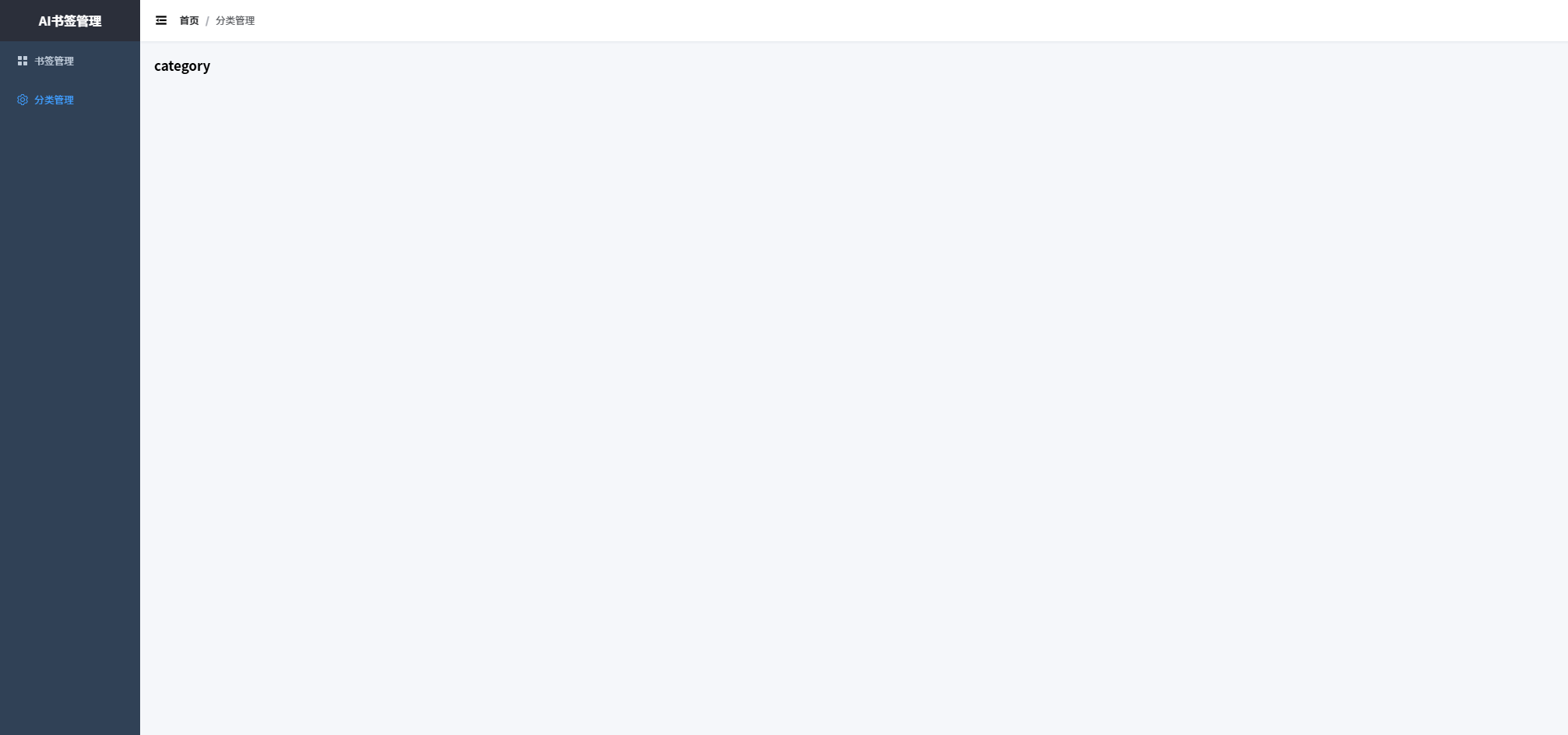
总结 📚
本文详细介绍了如何基于 Vue3 和 Element Plus 搭建前端管理界面。我们实现了:
- 现代化的后台管理布局
- 响应式侧边栏和顶部导航
- 路由配置
在下一篇文章中,我们将实现页面编写和接口对接。





 扫一扫
扫一扫


 被折叠的 条评论
为什么被折叠?
被折叠的 条评论
为什么被折叠?
 到【灌水乐园】发言





