


 本文介绍了HTML5 canvas的基本用法,包括如何在HTML中创建和使用canvas元素,获取CanvasRenderingContext2D对象,以及通过JavaScript进行绘图,如直线、矩形、弧线和图形的基本操作。同时展示了在Vue3中应用canvas的方法,涵盖了折线、矩形绘制和路径控制。
canvas是什么?
一个html5支持的新标签,见名知意,canvas就是画板的意思,可以在canvas上画画。css画三角形很简单,但是要画五角星呢,不妨试试canvas。
在html中使用canvas
1、canvas是html5中的一个标签。
新建一个html。并在body中加入canvas标签。
<body>
    <canvas height="600" width="600"></canvas>
</body>
此时canvas已经显示在画板中,只不过因为和body的颜色一样,所以看不出来。
在head中加入css样式。
<style>
    canvas {
        border:1px solid;
    }
</style>
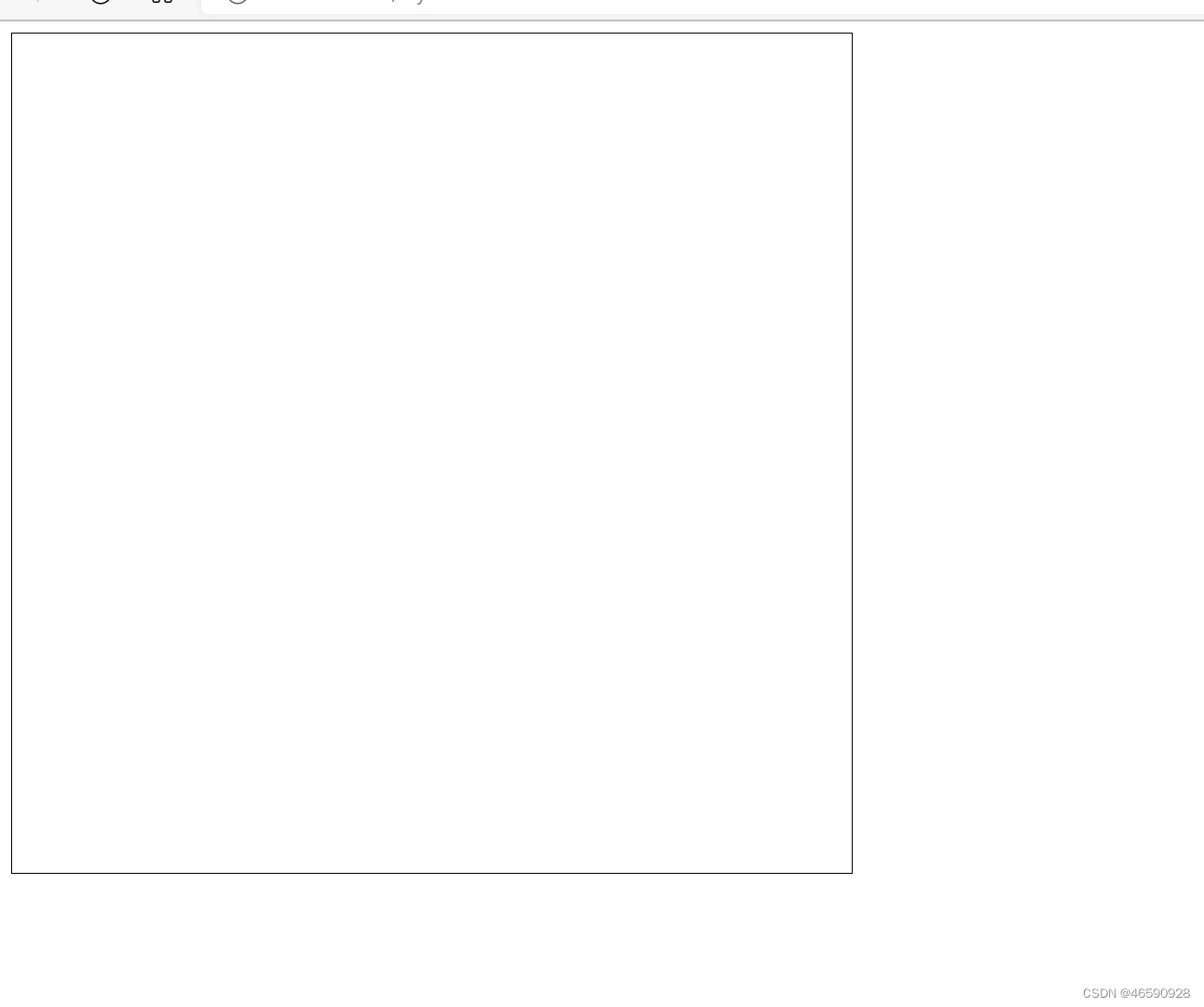
这时我们就可以看到canvas了。
2、获取CanvasRenderingContext2D对象用于绘图。
先给canvas一个id属性,
<canvas id='canvas' height="600" width="600"></canvas>
获取。
<script>
  const ctx=document.querySelector('#canvas').getContext('2d');
</script>
注意,script标签应该在body标签后(至少在canvas标签后),只有在canvas渲染后才能通过JavaScript代码获取到canvas中的CanvasRenderingContext2D对象。
<body>
    <canvas height="600" width="600"></canvas>
</body>
<script>
  const ctx=document.querySelector('.canvas').getContext('2d');
</script>
3、使用JavaScript代码进行绘画。
<script>
  const ctx=document.querySelector('#canvas').getContext('2d');
  ctx.moveTo(100,100);
  ctx.lineTo(100,400);
  ctx.stroke();
</script>
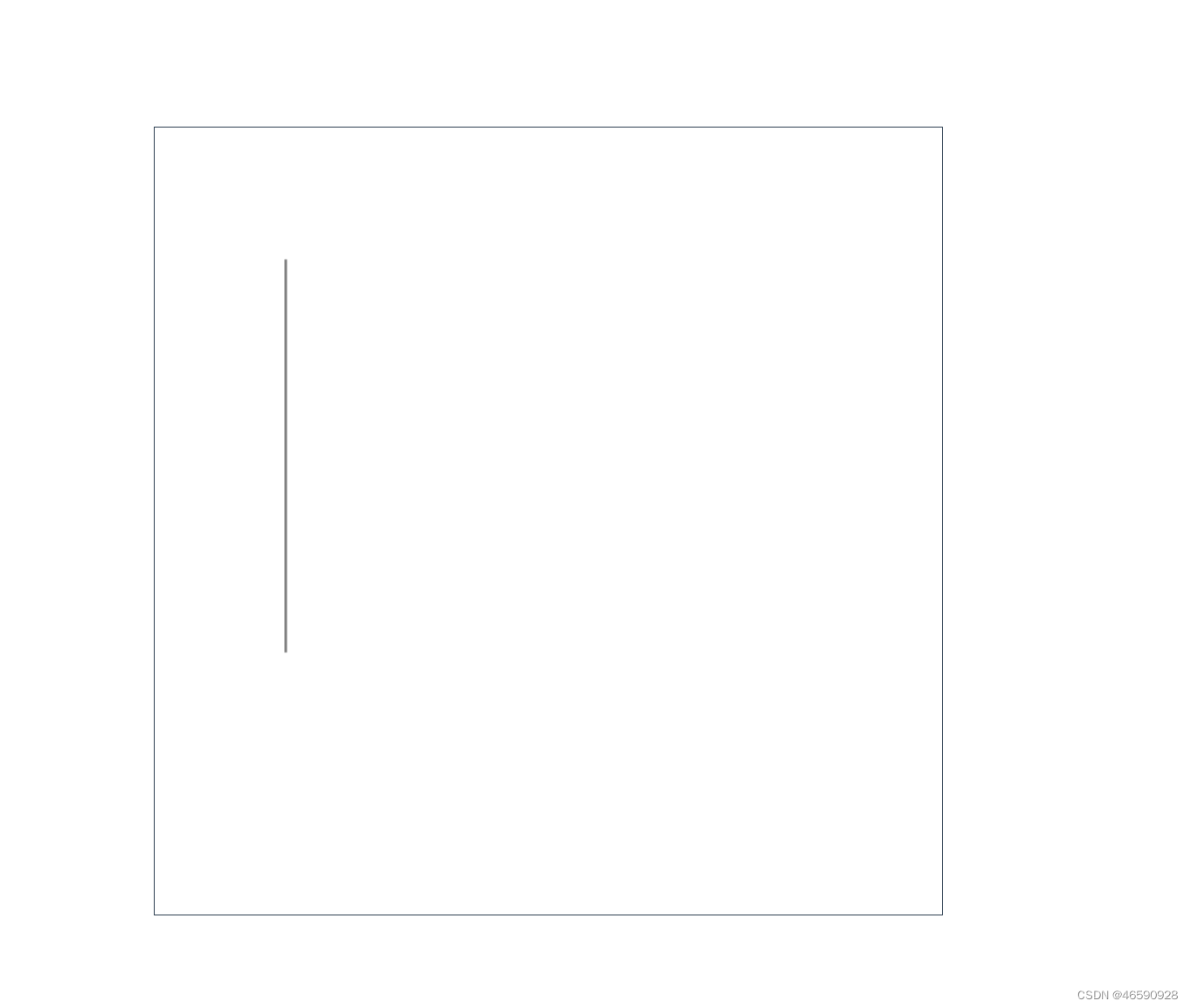
该代码绘制了一条直线。

关于CanvasRenderingContext2D对象更多的绘制方法请参考官方文档。至少现在我们知道canvas是如何使用的了。(一定要注意要在渲染完成后才能通过JavaScript代码获取CanvasRenderingContext2D对象)
在vue3中使用canvas
1、创建vite+vue3项目并运行。
npm init vue@latest
2、创建我们的canvas。
这是我们的App.vue文件
<script setup>

</script>

<template>

</template>

<style scoped>

</style>
创建我们的canvas
<script setup>

</script>

<template>
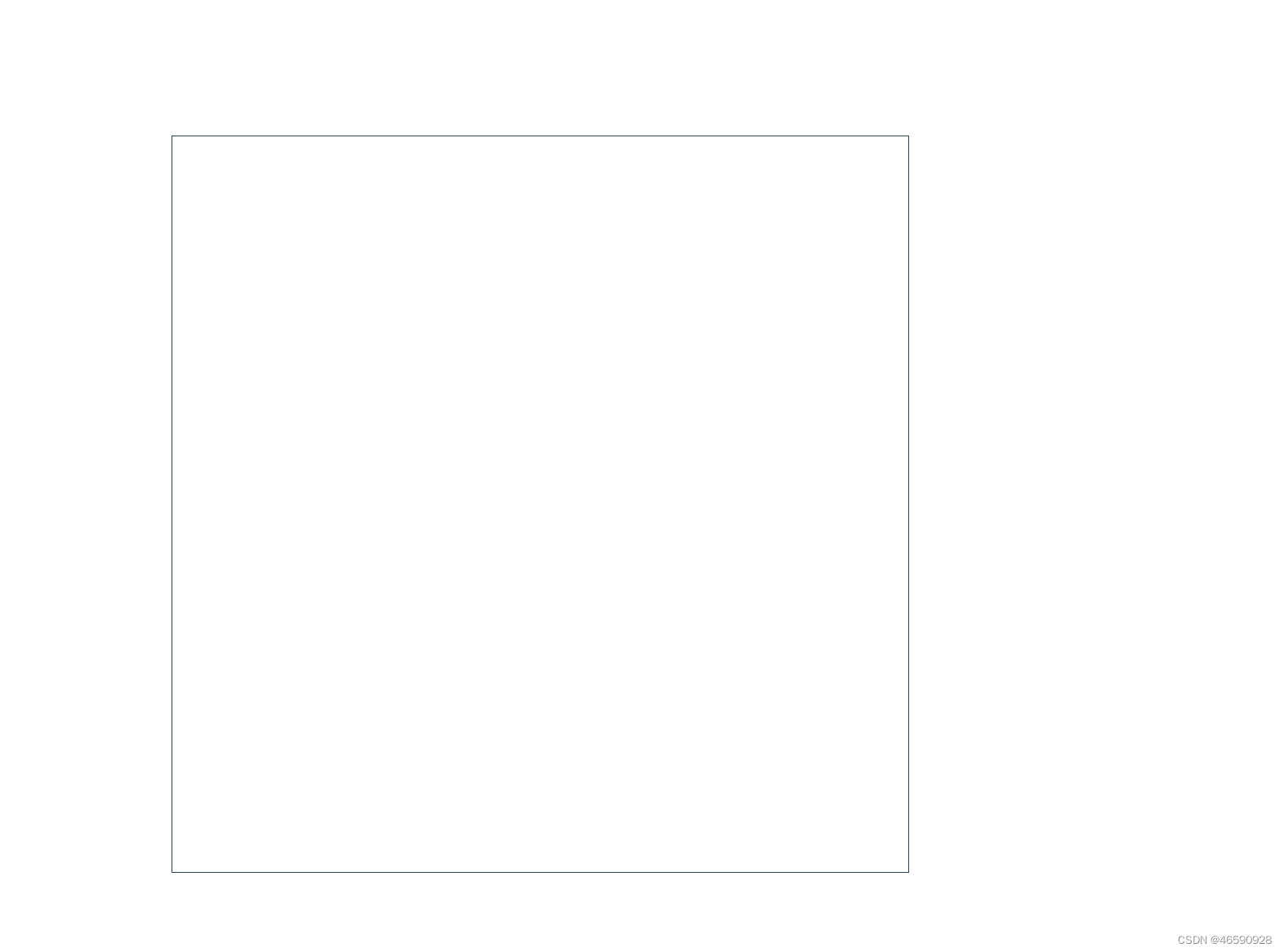
  <canvas height="600" width="600"></canvas>
</template>

<style scoped>
canvas {
  border: 1px solid;
}
</style>
3、获取CanvasRenderingContext2D对象并绘制直线。
给canvas标签添加一个ref属性
<canvas ref='canvas' height="600" width="600"></canvas>
获取canvas对象
<script setup>
import {ref} from 'vue'
const canvas = ref();
</script>
渲染完成后获取CanvasRenderingContext2D对象
<script setup>
import { onMounted, ref } from 'vue'

const canvas = ref();

onMounted(() => {
  const ctx = canvas.value.getContext('2d');
})

</script>
画一条直线
<script setup>
import { onMounted, ref } from 'vue'

const canvas = ref();

onMounted(() => {
  const ctx = canvas.value.getContext('2d');
  ctx.moveTo(100, 100);
  ctx.lineTo(100, 400);
  ctx.stroke();
})

</script>
4、模板
<script setup>
import { onMounted, ref } from 'vue'

const canvas = ref();
let ctx = ref();

const drawLine = () => {
  ctx.moveTo(100, 100);
  ctx.lineTo(100, 400);
  ctx.stroke();
}

const initContext = () => {
  ctx = canvas.value.getContext('2d');
}

onMounted(() => {
  initContext();
  drawLine();
})

</script>

<template>
  <canvas ref='canvas' height="600" width="600"></canvas>
</template>

<style scoped>
canvas {
  border: 1px solid;
}
</style>
canvas快速入门
绘制折线
一个moveTo配合多个lineTo。可以通过lineWidth设置线宽,还可以设置两个端点和转折处的形状(使用lineCap和lineJoin)
// 使用moveTo,lineTo,lineWidth,lineCap,lineJoin
const drawCurvedLine = () => {
  ctx.moveTo(100, 100);
  ctx.lineTo(400, 100);
  ctx.lineTo(100, 400);
  ctx.lineTo(400, 400);
  ctx.lineCap = 'round';
  ctx.lineJoin = 'round';
  ctx.stroke();
}
绘制矩形
rect方法以及strokeRect和fillRect。效果等效:strokeRect=rect+stroke,fillRect=rect+stroke。
绘制方式:绘制边框,使用stroke,绘制填充,使用fill。strokeStyle可以设置边框颜色,fillStyle可以设置填充颜色。
// 使用rect,srokeStyle,stroke,fillStyle,fill
const drawStrokeRect = () => {
  ctx.rect(100, 100, 100, 100);
  ctx.strokeStyle = 'green';
  ctx.stroke();
}

const drawFillRect = () => {
  ctx.rect(300, 100, 100, 100);
  ctx.fillStyle = 'blue';
  ctx.fill();
}
将绘制一个绿色边框的矩形和蓝色的矩形。然而,当一同调用时,会发现变成了两个一模一样的矩形(绿色边框或者蓝色填充)。
属性作用域:解决上述问题,使用beginPath方法即可。beginPath将后面对于属性的设置隔离开来,以避免覆盖前面的属性。
// 这里还尝试了使用strokeRect和fillRect替代了rect、stroke、fill
const drawStrokeRect = () => {
    ctx.beginPath();
    ctx.strokeStyle='green';
    ctx.strokeRect(100,100,100,100);
}

const drawFillRect = () => {
  ctx.beginPath();
  ctx.fillStyle = 'blue';
  ctx.fillRect(300, 100, 100, 100);
}
绘制弧线
圆圈
ctx.beginPath();
ctx.arc(100,75,50,0,2*Math.PI);
ctx.stroke();
圆弧
ctx.beginPath();
ctx.arc(100,75,50,90/180*Math.PI,2*Math.PI);
ctx.stroke();
扇形
ctx.beginPath();
ctx.moveTo(100,75);
ctx.arc(100,75,50,90/180*Math.PI,2*Math.PI);
ctx.closePath();
ctx.fill();
圆环
  const RINGWIDTH = 10;

  ctx.beginPath();
  ctx.arc(100, 75, 90, 0, 2 * Math.PI);
  ctx.fill();
  ctx.beginPath();
  ctx.arc(100, 75, 90-2*RINGWIDTH, 0, 2 * Math.PI);
  ctx.fillStyle = 'white';
  ctx.fill();
补充:
- 如你所见,绘制扇形时使用了closePath,意思是将所有端点连接起来(一般是将终点和起点连接起来,形成一个闭合图形。只有图形闭合时,fill才能生效)。
- 所有函数的参数不需要单位。(设置字体时,ctx.font=‘40px’,需要带单位,但确实不是函数的参数)
- 需要角度作为参数时,都是以弧度的形式提供。计算公式,弧度=角度*Math.PI/180。90度,记为90*Math.PI/180。
- 更多关于画布的使用,可以查看HTML Canvas 参考手册 (w3school.com.cn)





 扫一扫
扫一扫


 6153
6153

 被折叠的 条评论
为什么被折叠?
被折叠的 条评论
为什么被折叠?
 到【灌水乐园】发言





