



简介:Bluetooth Low Energy(BLE)作为低功耗蓝牙技术,在物联网领域具有广泛应用。本Android BLE.demo项目基于E104bt5010蓝牙模块,提供了一套完整的BLE通信实现框架,涵盖蓝牙适配、设备扫描、GATT连接、服务与特征操作等核心功能。项目内容可扩展性强,适合开发者学习并适配其他BLE模块。通过解析模块通讯协议、优化连接稳定性与兼容性,开发者可掌握Android BLE开发全流程,为物联网应用打下坚实基础。
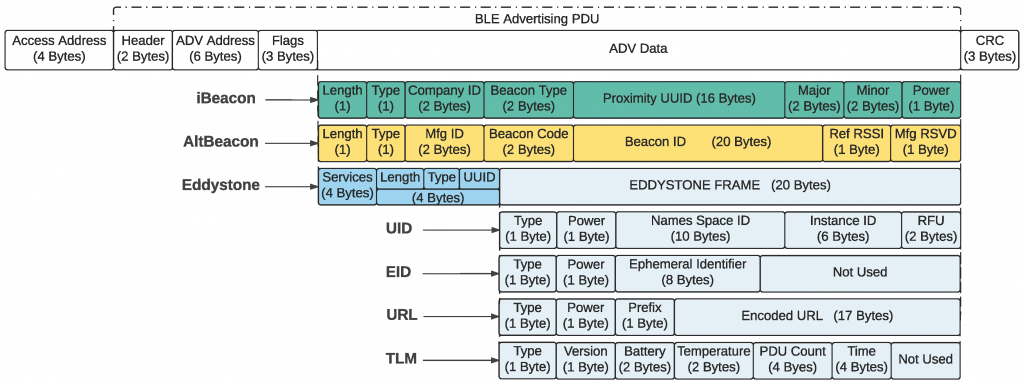
1. BLE基础概念与通信原理
在物联网(IoT)迅速发展的今天,低功耗无线通信技术成为智能设备连接的核心支撑,其中蓝牙低功耗(Bluetooth Low Energy,简称BLE)因其功耗低、连接快、兼容性强等优势,广泛应用于智能手环、智能家居、医疗设备等领域。BLE作为蓝牙4.0标准的重要组成部分,专为间歇性小数据量传输设计,其通信机制基于广播与连接两种模式,通过GATT(通用属性配置文件)协议实现数据交互。本章将从BLE的基本概念入手,深入解析其协议栈结构、通信流程以及典型应用场景,帮助读者构建完整的BLE知识体系,为后续Android平台的BLE开发奠定坚实基础。
2. Android BLE核心组件解析(BluetoothAdapter)
BluetoothAdapter 是 Android BLE 开发中最核心的组件之一,它是整个蓝牙功能的入口点。从设备扫描、连接到通信,BluetoothAdapter 贯穿了 BLE 开发的全流程。本章将深入解析 BluetoothAdapter 的作用、生命周期管理、设备扫描流程及其高级配置策略,帮助开发者全面掌握这一组件的使用与优化方法。
2.1 BluetoothAdapter的作用与生命周期
BluetoothAdapter 是 Android 系统中用于控制蓝牙功能的核心类,位于 android.bluetooth 包中。它负责蓝牙的初始化、状态监控、设备扫描与连接等核心操作。
2.1.1 初始化BluetoothAdapter的两种方式
在 Android 中,获取 BluetoothAdapter 的方式主要有两种:
方法一:通过 BluetoothManager 获取(推荐方式)
BluetoothManager bluetoothManager = (BluetoothManager) getSystemService(Context.BLUETOOTH_SERVICE);
BluetoothAdapter bluetoothAdapter = bluetoothManager.getAdapter();
-
BluetoothManager是 Android 从 API 18(Android 4.3)开始引入的,它提供了更丰富的蓝牙状态管理功能。 -
getAdapter()返回当前设备的 BluetoothAdapter 实例,推荐使用此方式获取。
方法二:通过静态方法 BluetoothAdapter.getDefaultAdapter()
BluetoothAdapter bluetoothAdapter = BluetoothAdapter.getDefaultAdapter(this);
- 此方法在 API 18 及以上版本已被弃用,推荐使用第一种方式。
代码分析与参数说明:
| 方法 | 是否推荐 | 说明 |
|---|---|---|
| BluetoothManager.getAdapter() | ✅ 推荐 | 支持更全面的蓝牙状态管理,推荐使用 |
| BluetoothAdapter.getDefaultAdapter() | ❌ 不推荐 | 已弃用,建议避免使用 |
⚠️ 注意:若设备不支持 BLE 功能,
getAdapter()会返回 null,需进行判空处理。
2.1.2 判断设备是否支持BLE功能
在进行 BLE 开发之前,必须判断当前设备是否支持 BLE:
boolean isBleSupported = getPackageManager().hasSystemFeature(PackageManager.FEATURE_BLUETOOTH_LE);
-
PackageManager.FEATURE_BLUETOOTH_LE表示设备是否支持蓝牙低功耗协议。 - 如果返回 false,说明该设备不支持 BLE,应提前提示用户或终止 BLE 相关操作。
示例判断流程图(mermaid):
graph TD
    A[检查设备是否支持BLE] --> B{支持BLE?}
    B -->|是| C[继续BLE流程]
    B -->|否| D[提示用户设备不支持BLE]
2.1.3 开启与关闭蓝牙的权限控制
在 Android 中,开启或关闭蓝牙需要特定权限:
权限声明(AndroidManifest.xml):
<uses-permission android:name="android.permission.BLUETOOTH"/>
<uses-permission android:name="android.permission.BLUETOOTH_ADMIN"/>
<uses-permission android:name="android.permission.ACCESS_FINE_LOCATION" />
-
BLUETOOTH:允许应用连接已配对设备。 -
BLUETOOTH_ADMIN:允许应用启动设备发现和操作蓝牙适配器。 -
ACCESS_FINE_LOCATION:Android 6.0+ 开始,扫描 BLE 设备需要定位权限。
开启蓝牙示例代码:
if (bluetoothAdapter != null && !bluetoothAdapter.isEnabled()) {
    Intent enableBtIntent = new Intent(BluetoothAdapter.ACTION_REQUEST_ENABLE);
    startActivityForResult(enableBtIntent, REQUEST_ENABLE_BT);
}
-
ACTION_REQUEST_ENABLE会弹出系统对话框让用户确认开启蓝牙。 -
startActivityForResult用于接收用户是否开启蓝牙的回调结果。
权限请求(Android 6.0+):
if (ContextCompat.checkSelfPermission(this, Manifest.permission.ACCESS_FINE_LOCATION)
        != PackageManager.PERMISSION_GRANTED) {
    ActivityCompat.requestPermissions(this,
            new String[]{Manifest.permission.ACCESS_FINE_LOCATION},
            LOCATION_PERMISSION_REQUEST_CODE);
}
⚠️ 注意:如果用户未授予定位权限,BLE 扫描将失败。
2.2 BluetoothAdapter与设备扫描
BluetoothAdapter 不仅是蓝牙状态的管理者,也是设备扫描的起点。在 BLE 开发中,设备扫描是最常见的操作之一。
2.2.1 获取BluetoothAdapter实例的方法
如前所述,推荐使用 BluetoothManager 获取 BluetoothAdapter 实例:
BluetoothManager bluetoothManager = (BluetoothManager) getSystemService(Context.BLUETOOTH_SERVICE);
BluetoothAdapter bluetoothAdapter = bluetoothManager.getAdapter();
- 此方式更安全,且支持 API 18 及以上版本。
- 若
bluetoothAdapter为 null,说明设备不支持蓝牙或未启用蓝牙功能。
2.2.2 扫描周围BLE设备的实现步骤
扫描 BLE 设备的流程如下:
- 检查蓝牙是否已启用。
- 请求定位权限(Android 6.0+)。
- 创建并注册
BluetoothLeScanner(在下一章详细介绍)。 - 调用
startLeScan()或使用BluetoothLeScanner的新 API。
使用传统 API 扫描设备(已弃用):
bluetoothAdapter.startLeScan(new BluetoothAdapter.LeScanCallback() {
    @Override
    public void onLeScan(BluetoothDevice device, int rssi, byte[] scanRecord) {
        Log.d("BLE", "Found device: " + device.getName());
    }
});
-
onLeScan():每次扫描到设备时回调。 -
device:代表扫描到的 BLE 设备。 -
rssi:信号强度值(用于距离估算)。 -
scanRecord:广播数据(后续章节将详细解析)。
⚠️ 注意:
startLeScan()已在 API 21 被弃用,推荐使用BluetoothLeScanner。
2.2.3 扫描结果的过滤与处理
在实际开发中,我们往往需要过滤扫描结果,例如只扫描特定服务 UUID 的设备:
ScanFilter filter = new ScanFilter.Builder()
        .setServiceUuid(ParcelUuid.fromString("0000110A-0000-1000-8000-00805F9B34FB"))
        .setServiceUuid(ParcelUuid.fromString("0000110B-0000-1000-8000-00805F9B34FB"))
        .build();
-
ScanFilter提供了丰富的过滤条件,包括服务 UUID、设备地址、设备名称等。 - 在
BluetoothLeScanner中可以结合ScanSettings使用多个ScanFilter。
示例表格:ScanFilter 可选过滤条件
| 过滤条件 | 方法 | 示例 |
|---|---|---|
| 服务 UUID | setServiceUuid() | ParcelUuid.fromString(“0000110A-…”) |
| 设备地址 | setDeviceAddress() | “00:11:22:33:44:55” |
| 设备名称 | setDeviceName() | “MyDevice” |
| 信号强度 | setRssi() | -70 |
| 服务数据 | setServiceData() | byte[] data |
💡 提示:合理使用过滤器可提升扫描效率,减少不必要的资源消耗。
2.3 BluetoothAdapter的高级配置
在实际开发中,为了提高性能和用户体验,往往需要对 BluetoothAdapter 进行高级配置,包括多设备管理、扫描模式设置以及状态监听机制。
2.3.1 多设备管理与连接策略
一个 BLE 应用可能需要同时连接多个设备。BluetoothAdapter 可以管理多个连接:
BluetoothGatt gatt1 = device1.connectGatt(context, false, gattCallback1);
BluetoothGatt gatt2 = device2.connectGatt(context, false, gattCallback2);
- 每个
BluetoothGatt实例代表一个设备连接。 - 不同设备使用不同的
BluetoothGattCallback实现独立的数据处理。
多连接管理策略建议:
| 策略 | 说明 |
|---|---|
| 按优先级连接 | 优先连接信号强或关键设备 |
| 按队列管理 | 控制连接并发数,避免资源竞争 |
| 自动重连机制 | 设备断开后尝试重新连接,增强稳定性 |
💡 提示:每个
BluetoothGatt占用一定资源,应合理控制连接数。
2.3.2 BLE扫描模式与功率控制
扫描模式影响扫描的频率和耗电量。Android 提供了多种扫描模式:
ScanSettings scanSettings = new ScanSettings.Builder()
        .setScanMode(ScanSettings.SCAN_MODE_LOW_LATENCY)
        .build();
-
SCAN_MODE_LOW_POWER:低功耗模式,适合后台扫描。 -
SCAN_MODE_BALANCED:平衡模式,折中性能与功耗。 -
SCAN_MODE_LOW_LATENCY:高频率扫描,适合前台实时发现设备。
不同扫描模式对比表:
| 模式 | 功耗 | 响应速度 | 适用场景 |
|---|---|---|---|
| LOW_POWER | ⭐⭐ | 慢 | 后台扫描 |
| BALANCED | ⭐⭐⭐ | 中等 | 普通扫描 |
| LOW_LATENCY | ⭐⭐⭐⭐ | 快 | 实时扫描 |
💡 提示:根据实际需求选择扫描模式,节省电量是移动设备开发的重要考量。
2.3.3 BluetoothAdapter状态监听机制
监听 BluetoothAdapter 状态变化可以及时响应蓝牙开启/关闭事件:
IntentFilter filter = new IntentFilter(BluetoothAdapter.ACTION_STATE_CHANGED);
registerReceiver(bluetoothStateReceiver, filter);
private final BroadcastReceiver bluetoothStateReceiver = new BroadcastReceiver() {
    @Override
    public void onReceive(Context context, Intent intent) {
        final int state = intent.getIntExtra(BluetoothAdapter.EXTRA_STATE, BluetoothAdapter.ERROR);
        switch (state) {
            case BluetoothAdapter.STATE_ON:
                Log.d("BLE", "蓝牙已开启");
                break;
            case BluetoothAdapter.STATE_OFF:
                Log.d("BLE", "蓝牙已关闭");
                break;
        }
    }
};
-
ACTION_STATE_CHANGED:蓝牙状态变化广播。 -
EXTRA_STATE:当前蓝牙状态值。 - 开发者可以据此更新 UI 或暂停 BLE 相关操作。
状态监听流程图(mermaid):
graph TD
    A[注册蓝牙状态监听] --> B{蓝牙状态变化}
    B -->|开启| C[执行扫描或连接操作]
    B -->|关闭| D[暂停BLE功能,提示用户]
⚠️ 注意:在 Activity 销毁时应注销广播接收器,防止内存泄漏。
至此,我们对 Android BLE 开发中的核心组件 BluetoothAdapter 进行了全面解析,包括其初始化、权限控制、设备扫描、结果过滤以及高级配置等内容。下一章将继续深入解析 BLE 扫描流程中另一个重要组件 BluetoothLeScanner 的使用与优化。
3. Android BLE核心组件解析(BluetoothLeScanner)
在BLE开发中, BluetoothLeScanner 是 Android 系统提供的用于执行BLE扫描操作的核心组件。它取代了早期版本中使用 BluetoothAdapter.startLeScan() 的方式,提供了更灵活、可控的扫描方式。本章将深入讲解 BluetoothLeScanner 的使用流程、扫描策略的优化方法,以及如何处理扫描回调与解析广播数据。
3.1 BluetoothLeScanner的基本功能与使用流程
BluetoothLeScanner 是从 Android 5.0(API 21)开始引入的,用于替代旧版的 BluetoothAdapter.startLeScan() 方法。它支持更丰富的扫描设置,包括扫描模式、过滤规则、扫描周期等,适用于对BLE扫描有较高要求的应用场景。
3.1.1 创建BluetoothLeScanner对象
要使用 BluetoothLeScanner ,首先需要获取其对象实例。通常通过 BluetoothAdapter 获取:
BluetoothManager bluetoothManager = (BluetoothManager) getSystemService(Context.BLUETOOTH_SERVICE);
BluetoothAdapter bluetoothAdapter = bluetoothManager.getAdapter();
BluetoothLeScanner bluetoothLeScanner = bluetoothAdapter.getBluetoothLeScanner();
代码逻辑分析:
- BluetoothManager :用于管理蓝牙适配器,是获取
BluetoothAdapter的推荐方式。 - getAdapter() :在 Android 6.0 及以上版本中已被弃用,推荐使用
BluetoothManager.getAdapter()。 - getBluetoothLeScanner() :获取
BluetoothLeScanner实例,用于后续的扫描操作。
参数说明:
-
Context.BLUETOOTH_SERVICE:系统服务名称,用于获取蓝牙管理服务。 - 返回的
BluetoothLeScanner对象用于执行扫描操作,如开始、停止扫描,设置扫描参数等。
3.1.2 构建ScanSettings与ScanFilter
扫描设置和过滤器是 BluetoothLeScanner 的核心配置。 ScanSettings 用于控制扫描的行为,如扫描模式、扫描间隔等; ScanFilter 用于指定扫描目标设备的过滤条件。
ScanSettings scanSettings = new ScanSettings.Builder()
        .setScanMode(ScanSettings.SCAN_MODE_LOW_LATENCY)
        .build();

ScanFilter scanFilter = new ScanFilter.Builder()
        .setDeviceName("MyBLEDevice")
        .build();
代码逻辑分析:
- ScanSettings.Builder :构建扫描设置,设置扫描模式为低延迟。
- ScanFilter.Builder :构建扫描过滤器,只扫描设备名称为
MyBLEDevice的设备。
参数说明:
-
SCAN_MODE_LOW_LATENCY:高频率扫描模式,适用于对响应速度要求较高的场景。 -
setDeviceName():设置扫描目标设备的名称,可选,也可使用setDeviceAddress()设置地址。
3.1.3 启动与停止扫描操作
使用 BluetoothLeScanner 启动和停止扫描:
bluetoothLeScanner.startScan(Arrays.asList(scanFilter), scanSettings, scanCallback);
// ...
bluetoothLeScanner.stopScan(scanCallback);
代码逻辑分析:
-
startScan():开始扫描,传入过滤器、扫描设置和回调对象。 -
stopScan():停止扫描,传入对应的回调对象。
参数说明:
-
scanFilter:扫描过滤器列表,可传入多个,用于更精确的筛选。 -
scanSettings:扫描设置,控制扫描的行为。 -
scanCallback:扫描回调对象,用于接收扫描结果。
3.2 扫描策略与性能优化
高效、稳定的扫描策略对于BLE应用至关重要。Android 提供了多种扫描模式和过滤机制,开发者可以根据实际需求进行优化。
3.2.1 ScanSettings中的扫描模式详解
ScanSettings 提供了几种不同的扫描模式,用于控制扫描的频率和功耗:
| 扫描模式常量 | 描述 |
|---|---|
| SCAN_MODE_LOW_POWER | 低功耗模式,扫描间隔长,适用于后台扫描 |
| SCAN_MODE_BALANCED | 平衡模式,扫描间隔适中 |
| SCAN_MODE_LOW_LATENCY | 低延迟模式,高频率扫描,适用于前台快速发现设备 |
mermaid流程图:扫描模式选择流程
graph TD
    A[启动扫描] --> B{用户是否在前台?}
    B -->|是| C[使用SCAN_MODE_LOW_LATENCY]
    B -->|否| D{是否需要低功耗?}
    D -->|是| E[使用SCAN_MODE_LOW_POWER]
    D -->|否| F[使用SCAN_MODE_BALANCED]
使用建议:
- 前台应用推荐使用
SCAN_MODE_LOW_LATENCY,提升响应速度。 - 后台扫描建议使用
SCAN_MODE_LOW_POWER,减少电量消耗。
3.2.2 ScanFilter的组合使用与匹配逻辑
ScanFilter 支持多个过滤条件组合使用,例如同时根据设备名称和地址进行过滤:
ScanFilter filter1 = new ScanFilter.Builder()
        .setDeviceName("MyBLEDevice")
        .build();

ScanFilter filter2 = new ScanFilter.Builder()
        .setDeviceAddress("00:11:22:33:44:55")
        .build();

bluetoothLeScanner.startScan(Arrays.asList(filter1, filter2), scanSettings, scanCallback);
匹配逻辑说明:
- 若设置多个
ScanFilter,设备只要满足其中一个即可被扫描到。 - 如需精确匹配多个条件,可在回调中进行二次过滤。
3.2.3 避免重复扫描与资源占用优化
频繁的扫描操作会增加电量消耗和CPU占用。建议采用以下优化策略:
- 限制扫描时长 :设定超时时间,自动停止扫描。
- 避免重复扫描同一设备 :使用
SparseArray或HashSet记录已扫描设备。 - 后台扫描限制 :在非前台时使用低功耗模式。
new Handler(Looper.getMainLooper()).postDelayed(() -> {
    bluetoothLeScanner.stopScan(scanCallback);
}, 10000); // 扫描10秒后停止
逻辑说明:
- 使用
Handler延迟执行stopScan(),防止长时间扫描。 - 可根据业务需求设置合理的扫描时间,如5秒或30秒。
3.3 扫描回调与数据解析
扫描回调是 BluetoothLeScanner 的核心接口,开发者通过实现 ScanCallback 接口来接收扫描结果。
3.3.1 ScanCallback的类型与使用场景
ScanCallback 有三种回调方式:
| 回调类型 | 说明 |
|---|---|
| CALLBACK_TYPE_ALL_MATCHES | 所有扫描到的设备都会回调 |
| CALLBACK_TYPE_FIRST_MATCH | 首次匹配设备时回调 |
| CALLBACK_TYPE_MATCH_LOST | 匹配设备丢失时回调(需要支持API 23+) |
ScanCallback scanCallback = new ScanCallback() {
    @Override
    public void onScanResult(int callbackType, ScanResult result) {
        super.onScanResult(callbackType, result);
        BluetoothDevice device = result.getDevice();
        int rssi = result.getRssi();
        byte[] scanRecord = result.getScanRecord().getBytes();
        Log.d("BLE_SCAN", "Found device: " + device.getName() + ", RSSI: " + rssi);
    }
};
参数说明:
-
callbackType:回调类型,用于判断触发条件。 -
ScanResult:包含设备信息、信号强度(RSSI)和广播数据(ScanRecord)。
3.3.2 解析ScanResult中的广播数据
广播数据(ScanRecord)中包含了设备的名称、服务UUID、厂商自定义数据等信息:
ScanRecord scanRecord = result.getScanRecord();
if (scanRecord != null) {
    SparseArray<byte[]> manufacturerData = scanRecord.getManufacturerSpecificData();
    for (int i = 0; i < manufacturerData.size(); i++) {
        int manufacturerId = manufacturerData.keyAt(i);
        byte[] data = manufacturerData.valueAt(i);
        Log.d("BLE_SCAN", "Manufacturer ID: " + manufacturerId + ", Data: " + Arrays.toString(data));
    }
}
代码逻辑分析:
-
getScanRecord():获取完整的广播数据。 -
getManufacturerSpecificData():获取厂商自定义数据,用于识别特定设备。
3.3.3 实时展示扫描设备列表
为了提升用户体验,可以将扫描结果实时展示在界面上:
ListView deviceListView = findViewById(R.id.device_list);
ArrayAdapter<BluetoothDevice> adapter = new ArrayAdapter<>(this, android.R.layout.simple_list_item_1);
deviceListView.setAdapter(adapter);

scanCallback = new ScanCallback() {
    @Override
    public void onScanResult(int callbackType, ScanResult result) {
        BluetoothDevice device = result.getDevice();
        if (!adapter.isEmpty() && adapter.getPosition(device) == -1) {
            adapter.add(device);
        }
    }
};
逻辑说明:
- 使用
ArrayAdapter管理设备列表。 - 每次扫描到新设备时检查是否已存在,避免重复添加。
优化建议:
- 添加设备时可按信号强度(RSSI)排序。
- 使用
Handler延迟刷新列表,避免频繁UI更新。
至此,我们完成了对 BluetoothLeScanner 的全面解析。本章不仅介绍了其基本使用流程,还深入探讨了扫描策略的优化方式与回调数据的处理逻辑,为下一章中BLE连接与Gatt交互打下坚实基础。
4. Android BLE核心组件解析(BluetoothGatt)
在BLE通信中, BluetoothGatt 是 Android 系统中用于与远程 BLE 设备进行数据交互的核心组件。它不仅负责建立和管理 GATT 连接,还承担着服务发现、特征值读写、通知订阅以及事件回调等重要职责。理解 BluetoothGatt 的工作机制对于实现稳定、高效的 BLE 通信至关重要。本章将深入解析 BluetoothGatt 的使用流程、连接管理机制、服务发现策略以及数据交互的细节。
4.1 BluetoothGatt的作用与连接管理
BluetoothGatt 是 Android 提供的用于与远程 BLE 设备进行 GATT 协议通信的类。它封装了 BLE 设备的连接、服务发现、特征读写等操作,并通过回调接口 BluetoothGattCallback 向上层应用传递事件。
4.1.1 建立与远程设备的Gatt连接
在获得目标 BLE 设备的 BluetoothDevice 实例后,可以通过调用 connectGatt() 方法来建立 GATT 连接。
BluetoothGatt bluetoothGatt = device.connectGatt(context, false, gattCallback);
参数说明:
- context :上下文环境,通常为 Activity 或 Application。
- false :表示是否自动连接(autoConnect)。设为 false 时,仅在设备处于连接范围内时尝试连接。
- gattCallback :一个 BluetoothGattCallback 的实现类,用于接收连接状态、服务发现、特征值读写等事件。
代码逻辑分析:
- connectGatt() 方法是非阻塞的,它会立即返回一个 BluetoothGatt 实例。
- 真正的连接建立是异步的,连接结果将通过 onConnectionStateChange() 回调返回。
4.1.2 BluetoothGatt的连接状态监听
连接状态的变化通过 BluetoothGattCallback 的 onConnectionStateChange() 方法通知:
@Override
public void onConnectionStateChange(BluetoothGatt gatt, int status, int newState) {
    if (newState == BluetoothProfile.STATE_CONNECTED) {
        Log.i("BLE", "Connected to GATT server.");
        // 开始服务发现
        gatt.discoverServices();
    } else if (newState == BluetoothProfile.STATE_DISCONNECTED) {
        Log.i("BLE", "Disconnected from GATT server.");
    }
}
参数说明:
- status :操作状态, BluetoothGatt.GATT_SUCCESS 表示成功。
- newState :新的连接状态,如 STATE_CONNECTED 、 STATE_DISCONNECTED 。
流程图:
graph TD
    A[调用 connectGatt] --> B{连接成功?}
    B -->|是| C[触发 onConnectionStateChange -> STATE_CONNECTED]
    B -->|否| D[触发 onConnectionStateChange -> STATE_DISCONNECTED]
    C --> E[调用 discoverServices()]
4.1.3 设备断开与重连机制
当 BLE 设备断开连接时,开发者应根据业务逻辑决定是否尝试重连。
断开连接:
bluetoothGatt.disconnect();
释放资源:
bluetoothGatt.close(); // 在不再需要连接时调用
自动重连机制示例:
private boolean autoReconnect = true;

@Override
public void onConnectionStateChange(BluetoothGatt gatt, int status, int newState) {
    if (newState == BluetoothProfile.STATE_DISCONNECTED && autoReconnect) {
        new Handler(Looper.getMainLooper()).postDelayed(() -> {
            gatt.connect(); // 重新连接
        }, 5000); // 5秒后尝试重连
    }
}
4.2 BluetoothGatt服务发现与交互
在成功建立 GATT 连接后,下一步是发现 BLE 设备提供的服务。服务发现是 BLE 通信的核心步骤之一,只有完成服务发现,才能进行后续的特征值操作。
4.2.1 发现远程服务的方法与流程
调用 discoverServices() 方法启动服务发现过程:
bluetoothGatt.discoverServices();
服务发现完成后的回调:
@Override
public void onServicesDiscovered(BluetoothGatt gatt, int status) {
    if (status == BluetoothGatt.GATT_SUCCESS) {
        List<BluetoothGattService> services = gatt.getServices();
        for (BluetoothGattService service : services) {
            Log.d("BLE", "Service UUID: " + service.getUuid());
            List<BluetoothGattCharacteristic> characteristics = service.getCharacteristics();
            for (BluetoothGattCharacteristic characteristic : characteristics) {
                Log.d("BLE", "Characteristic UUID: " + characteristic.getUuid());
            }
        }
    }
}
流程图:
graph TD
    A[调用 discoverServices] --> B{发现服务成功?}
    B -->|是| C[触发 onServicesDiscovered -> GATT_SUCCESS]
    B -->|否| D[触发 onServicesDiscovered -> 非 GATT_SUCCESS]
    C --> E[调用 getServices() 获取服务列表]
    E --> F[遍历服务与特征值]
4.2.2 Gatt服务的缓存与刷新机制
Android 系统会缓存之前发现的服务。如果设备更新了服务结构,需要手动刷新服务缓存。
刷新服务缓存:
boolean success = bluetoothGatt.refresh();
注意:
- refresh() 是隐藏方法(hidden API),需要通过反射调用。
- 在 Android 6.0(API 23)之后, refresh() 方法被标记为非公开,使用时需谨慎。
反射调用示例:
try {
    Method refreshMethod = BluetoothGatt.class.getMethod("refresh");
    boolean success = (boolean) refreshMethod.invoke(bluetoothGatt);
} catch (Exception e) {
    e.printStackTrace();
}
4.2.3 服务发现失败的处理方案
服务发现失败时,可以通过以下方式进行处理:
- 重试机制: 在
onServicesDiscovered()中检测status,若失败则重新调用discoverServices()。 - 用户提示: 显示连接失败提示信息,引导用户重新连接设备。
- 日志记录: 记录错误码,便于调试。
@Override
public void onServicesDiscovered(BluetoothGatt gatt, int status) {
    if (status != BluetoothGatt.GATT_SUCCESS) {
        Log.e("BLE", "Service discovery failed with status: " + status);
        // 可尝试重试或提示用户
    }
}
错误码表:
| 状态码 | 含义 |
|---|---|
| 0 | GATT_SUCCESS |
| 133 | GATT_ERROR |
| 257 | GATT_CONN_L2C_FAILURE |
| 65 | GATT_CONN_TIMEOUT |
4.3 BluetoothGatt的数据操作与事件回调
在完成服务发现后,即可对 BLE 设备的特征值进行读写操作,并通过 BluetoothGattCallback 接收操作结果。
4.3.1 特征值读写与描述符操作
读取特征值:
BluetoothGattCharacteristic characteristic = ...;
bluetoothGatt.readCharacteristic(characteristic);
写入特征值:
characteristic.setValue("Hello BLE".getBytes());
bluetoothGatt.writeCharacteristic(characteristic);
设置写入类型(WRITE_TYPE):
characteristic.setWriteType(BluetoothGattCharacteristic.WRITE_TYPE_DEFAULT);
描述符操作:
BluetoothGattDescriptor descriptor = characteristic.getDescriptor(descriptorUuid);
descriptor.setValue(BluetoothGattDescriptor.ENABLE_NOTIFICATION_VALUE);
bluetoothGatt.writeDescriptor(descriptor);
4.3.2 Gatt操作的成功与失败回调
所有 GATT 操作的结果都通过 BluetoothGattCallback 回调返回:
@Override
public void onCharacteristicRead(BluetoothGatt gatt, BluetoothGattCharacteristic characteristic, int status) {
    if (status == BluetoothGatt.GATT_SUCCESS) {
        byte[] data = characteristic.getValue();
        Log.d("BLE", "Read value: " + Arrays.toString(data));
    }
}

@Override
public void onCharacteristicWrite(BluetoothGatt gatt, BluetoothGattCharacteristic characteristic, int status) {
    if (status == BluetoothGatt.GATT_SUCCESS) {
        Log.d("BLE", "Characteristic write success");
    }
}
回调函数说明:
- onCharacteristicRead() :读取特征值完成。
- onCharacteristicWrite() :写入特征值完成。
- onDescriptorWrite() :描述符写入完成。
- onReadRemoteRssi() :读取远程设备 RSSI 完成。
4.3.3 BluetoothGattCallback详解
BluetoothGattCallback 是 GATT 通信的核心回调接口,它包含多个回调方法用于监听连接状态、服务发现、特征值操作等事件。
| 回调方法 | 触发条件 |
|---|---|
| onConnectionStateChange | 连接/断开事件 |
| onServicesDiscovered | 服务发现完成 |
| onCharacteristicRead | 特征值读取完成 |
| onCharacteristicWrite | 特征值写入完成 |
| onDescriptorWrite | 描述符写入完成 |
| onCharacteristicChanged | 特征值被远程设备更新(通知/指示) |
| onReadRemoteRssi | 读取远程设备 RSSI 成功 |
完整回调示例:
BluetoothGattCallback gattCallback = new BluetoothGattCallback() {
    @Override
    public void onConnectionStateChange(BluetoothGatt gatt, int status, int newState) {
        // 处理连接状态变化
    }

    @Override
    public void onServicesDiscovered(BluetoothGatt gatt, int status) {
        // 处理服务发现结果
    }

    @Override
    public void onCharacteristicRead(BluetoothGatt gatt, BluetoothGattCharacteristic characteristic, int status) {
        // 处理特征值读取结果
    }

    @Override
    public void onCharacteristicWrite(BluetoothGatt gatt, BluetoothGattCharacteristic characteristic, int status) {
        // 处理特征值写入结果
    }

    @Override
    public void onCharacteristicChanged(BluetoothGatt gatt, BluetoothGattCharacteristic characteristic) {
        // 处理特征值通知
    }
};
总结:
本章详细解析了 BluetoothGatt 在 Android BLE 开发中的核心作用,包括连接管理、服务发现、特征值操作与回调机制。通过掌握这些内容,开发者可以实现对 BLE 设备的稳定连接与高效数据交互,为后续的 BLE 应用开发打下坚实基础。
5. BLE服务与特征的读写操作实现
在BLE通信中,服务(Service)和特征(Characteristic)构成了数据交互的核心结构。BLE设备通过服务组织功能模块,每个服务包含一个或多个特征,每个特征定义了设备可以读取或写入的数据。本章将深入解析如何在Android平台上通过BluetoothGatt接口实现BLE服务的发现、特征值的读取与写入操作、描述符的配置,以及通知的订阅与管理。本章内容将结合实际开发中的代码示例,帮助开发者构建完整的BLE数据通信能力。
5.1 BLE服务结构与特征值定义
5.1.1 UUID的格式与作用
BLE协议中, UUID(Universally Unique Identifier) 是服务与特征的唯一标识符,用于区分不同的服务和特征。BLE设备使用16位、32位或128位的UUID。其中, 16位UUID 是基于蓝牙官方定义的基础UUID( 00000000-0000-1000-8000-00805F9B34FB )简化而来的,例如:
-
0x110A对应0000110A-0000-1000-8000-00805F9B34FB(Heart Rate Service) -
0x2A37对应00002A37-0000-1000-8000-00805F9B34FB(Heart Rate Measurement)
UUID结构解析:
| 位数 | 类型 | 示例 |
|---|---|---|
| 16位 | 蓝牙官方服务 | 0x110A |
| 32位 | 自定义服务 | 0x12345678 |
| 128位 | 自定义完整UUID | 12345678-9ABC-DEF0-1234-56789ABCDEF0 |
在Android中,使用 java.util.UUID 类表示UUID。例如:
UUID heartRateServiceUuid = UUID.fromString("0000110A-0000-1000-8000-00805F9B34FB");
5.1.2 标准服务与自定义服务的区别
| 类型 | 来源 | 用途 | 特点 |
|---|---|---|---|
| 标准服务 | 蓝牙SIG组织定义 | 通用功能(如心率、电池电量) | 稳定、广泛支持 |
| 自定义服务 | 设备厂商自定义 | 实现特定业务逻辑 | 灵活、需自行定义 |
示例:标准服务 Heart Rate Service(UUID: 0x110A)
- 特征:Heart Rate Measurement(UUID: 0x2A37)
示例:自定义服务
- 假设某智能手环提供“步数”服务,其UUID为: 12345678-9ABC-DEF0-1234-56789ABCDEF0
- 特征:Step Count(UUID: 12345679-9ABC-DEF0-1234-56789ABCDEF0 )
5.1.3 特征值的读写权限设置
每个特征值(Characteristic)都具有特定的读写权限,由其属性( properties )决定。常见的权限包括:
| 权限 | 标志 | 说明 |
|---|---|---|
| 读取 | PROPERTY_READ | 允许读取特征值 |
| 写入 | PROPERTY_WRITE | 允许写入特征值(无应答) |
| 写入带应答 | PROPERTY_WRITE_NO_RESPONSE | 写入后设备不返回确认 |
| 通知 | PROPERTY_NOTIFY | 支持特征值变化通知 |
| 指示 | PROPERTY_INDICATE | 支持特征值变化指示(带应答) |
在Android中,通过 BluetoothGattCharacteristic 的 getProperties() 方法获取权限信息。
BluetoothGattCharacteristic characteristic = ...;
int properties = characteristic.getProperties();
if ((properties & BluetoothGattCharacteristic.PROPERTY_READ) != 0) {
    // 支持读取
}
if ((properties & BluetoothGattCharacteristic.PROPERTY_WRITE) != 0) {
    // 支持写入
}
5.2 特征值的读取与写入操作
5.2.1 读取特征值的基本流程
读取BLE特征值的流程如下:
graph TD
    A[调用readCharacteristic方法] --> B[BluetoothGatt发送读取请求]
    B --> C{设备是否响应?}
    C -->|是| D[触发onCharacteristicRead回调]
    C -->|否| E[读取失败,返回错误码]
代码实现:
BluetoothGatt gatt = ...;
BluetoothGattCharacteristic characteristic = ...;

boolean success = gatt.readCharacteristic(characteristic);
if (!success) {
    Log.e("BLE", "Read characteristic failed.");
}
onCharacteristicRead回调处理:
@Override
public void onCharacteristicRead(BluetoothGatt gatt, BluetoothGattCharacteristic characteristic, int status) {
    if (status == BluetoothGatt.GATT_SUCCESS) {
        byte[] value = characteristic.getValue();
        Log.d("BLE", "Characteristic value: " + Arrays.toString(value));
    } else {
        Log.e("BLE", "Read failed, status: " + status);
    }
}
5.2.2 写入特征值的多种方式
BLE特征值写入支持以下两种模式:
-
WRITE_TYPE_DEFAULT:写入后等待设备应答(适用于关键数据) -
WRITE_TYPE_NO_RESPONSE:不等待应答,适合高频数据写入
代码示例:
BluetoothGattCharacteristic characteristic = ...;
characteristic.setValue("CMD:ON".getBytes());
characteristic.setWriteType(BluetoothGattCharacteristic.WRITE_TYPE_DEFAULT);

boolean success = gatt.writeCharacteristic(characteristic);
if (!success) {
    Log.e("BLE", "Write characteristic failed.");
}
onCharacteristicWrite回调处理:
@Override
public void onCharacteristicWrite(BluetoothGatt gatt, BluetoothGattCharacteristic characteristic, int status) {
    if (status == BluetoothGatt.GATT_SUCCESS) {
        Log.d("BLE", "Write success");
    } else {
        Log.e("BLE", "Write failed, status: " + status);
    }
}
5.2.3 异步读写操作的线程管理
BLE操作必须在主线程之外执行,以避免阻塞UI。推荐使用 HandlerThread 或 ExecutorService 进行线程管理。
使用HandlerThread管理线程:
HandlerThread handlerThread = new HandlerThread("BleWorker");
handlerThread.start();
Handler workerHandler = new Handler(handlerThread.getLooper());

workerHandler.post(() -> {
    BluetoothGatt gatt = ...;
    BluetoothGattCharacteristic characteristic = ...;
    boolean success = gatt.readCharacteristic(characteristic);
});
注意事项:
- 每次读写操作应确保前一次操作已完成
- 多线程访问BluetoothGatt时应加锁
5.3 描述符操作与特征通知
5.3.1 描述符的读写与配置
描述符(Descriptor)用于配置特征值的行为,例如启用通知。最常用的描述符是Client Characteristic Configuration Descriptor(UUID: 00002902-0000-1000-8000-00805F9B34FB )。
启用通知描述符:
BluetoothGattDescriptor descriptor = characteristic.getDescriptor(UUID.fromString("00002902-0000-1000-8000-00805F9B34FB"));
descriptor.setValue(BluetoothGattDescriptor.ENABLE_NOTIFICATION_VALUE);
gatt.writeDescriptor(descriptor);
onDescriptorWrite回调处理:
@Override
public void onDescriptorWrite(BluetoothGatt gatt, BluetoothGattDescriptor descriptor, int status) {
    if (status == BluetoothGatt.GATT_SUCCESS) {
        Log.d("BLE", "Descriptor write success");
    } else {
        Log.e("BLE", "Descriptor write failed: " + status);
    }
}
5.3.2 启用/禁用特征通知的实现
启用通知:
gatt.setCharacteristicNotification(characteristic, true);
禁用通知:
gatt.setCharacteristicNotification(characteristic, false);
5.3.3 特征操作中的错误码处理
BLE操作可能返回多种错误码,开发者应根据错误码进行相应处理。常见错误码如下:
| 错误码 | 常见原因 |
|---|---|
GATT_SUCCESS (0) | 操作成功 |
GATT_READ_NOT_PERMITTED (2) | 不允许读取 |
GATT_WRITE_NOT_PERMITTED (3) | 不允许写入 |
GATT_INSUFFICIENT_AUTHENTICATION (5) | 鉴权不足 |
GATT_REQUEST_NOT_SUPPORTED (6) | 请求不支持 |
GATT_INVALID_OFFSET (7) | 偏移量无效 |
GATT_UNKNOWN_DESCRIPTOR (9) | 描述符不存在 |
GATT_CONNECTION_CONGESTED (14) | 连接拥堵 |
错误码处理示例:
@Override
public void onCharacteristicRead(BluetoothGatt gatt, BluetoothGattCharacteristic characteristic, int status) {
    switch (status) {
        case BluetoothGatt.GATT_SUCCESS:
            Log.d("BLE", "Read success");
            break;
        case BluetoothGatt.GATT_READ_NOT_PERMITTED:
            Log.e("BLE", "Read not permitted");
            break;
        case BluetoothGatt.GATT_CONNECTION_CONGESTED:
            Log.e("BLE", "Connection congested, retry later");
            break;
        default:
            Log.e("BLE", "Unknown error: " + status);
    }
}
本章小结:
- BLE通信的核心是服务与特征的交互。
- UUID用于标识服务和特征。
- 特征值的读写需根据其权限进行操作。
- 描述符控制特征行为,如启用通知。
- 异步操作与错误码处理是稳定通信的关键。
本章内容为后续实现BLE数据通信提供了坚实基础,下一章将继续深入讲解BLE设备通知订阅与数据接收处理的实现机制。
6. BLE设备通知订阅与数据接收处理
在BLE通信中,通知(Notification)是主机(如Android设备)从从机(BLE设备)获取数据的主要方式之一。本章将深入解析BLE通知的订阅机制、数据接收流程以及在实际开发中如何优化数据通信的稳定性。
6.1 BLE通知机制的原理与配置
BLE通知机制是基于GATT协议实现的,当从机设备有新数据时,会主动通过特征值通知(Characteristic Notification)方式推送给主机。
6.1.1 特征值通知的触发条件
BLE设备只有在满足以下条件时才会触发通知:
- 该特征值的属性中包含
PROPERTY_NOTIFY; - 主机已经成功订阅该特征值的通知;
- 从机设备主动发送通知数据。
6.1.2 设置通知描述符的正确方式
要启用通知,必须设置特征值的客户端配置描述符(Client Characteristic Configuration Descriptor,UUID为 0000110A-0000-1000-8000-00805F9B34FB )为 0x0001 。
BluetoothGattDescriptor descriptor = characteristic.getDescriptor(
    UUID.fromString("00002902-0000-1000-8000-00805F9B34FB"));

if (descriptor != null) {
    descriptor.setValue(BluetoothGattDescriptor.ENABLE_NOTIFICATION_VALUE);
    bluetoothGatt.writeDescriptor(descriptor);
}
6.1.3 通知订阅的回调处理流程
在 BluetoothGattCallback 中,当描述符写入成功后,可以启用通知:
@Override
public void onDescriptorWrite(BluetoothGatt gatt, BluetoothGattDescriptor descriptor, int status) {
    if (status == BluetoothGatt.GATT_SUCCESS) {
        gatt.setCharacteristicNotification(characteristic, true);
    }
}
6.2 数据接收与异步处理机制
BLE通信中,主机通过 onCharacteristicChanged 回调接收通知数据。本节将讲解如何解析接收到的数据,并在多线程环境下进行高效处理。
6.2.1 onCharacteristicChanged回调的使用
当BLE设备发送通知时,系统会回调 onCharacteristicChanged 方法:
@Override
public void onCharacteristicChanged(BluetoothGatt gatt, BluetoothGattCharacteristic characteristic) {
    byte[] data = characteristic.getValue();
    Log.d("BLE", "Received data: " + Arrays.toString(data));
}
6.2.2 接收数据的解析与格式转换
通常BLE数据是以字节数组传输的,需根据协议解析:
public int parseTemperature(byte[] data) {
    // 假设前两个字节为温度数据(16位有符号整数)
    return (data[0] & 0xFF) | ((data[1] & 0xFF) << 8);
}
也可以转换为字符串:
String received = new String(data, StandardCharsets.UTF_8);
6.2.3 多线程环境下数据处理策略
为了防止主线程阻塞,应将数据处理放入子线程:
HandlerThread handlerThread = new HandlerThread("BleDataHandler");
handlerThread.start();
Handler handler = new Handler(handlerThread.getLooper());

@Override
public void onCharacteristicChanged(BluetoothGatt gatt, BluetoothGattCharacteristic characteristic) {
    handler.post(() -> {
        byte[] data = characteristic.getValue();
        processReceivedData(data); // 在子线程中处理数据
    });
}
6.3 BLE数据通信的稳定性优化
在实际应用中,BLE通信可能会受到干扰、丢包等问题影响。本节将介绍如何优化BLE通知的数据通信稳定性。
6.3.1 数据包丢失与重传机制
虽然BLE协议本身不支持重传机制,但可以在应用层模拟:
- 在接收端设置超时检测;
- 如果在一定时间内未收到数据,主动请求重发;
- 使用CRC校验机制验证数据完整性。
6.3.2 高频通知下的性能优化
高频通知可能导致大量回调堆积,建议采取以下措施:
| 优化策略 | 说明 |
|---|---|
| 限流处理 | 限制每秒接收通知的频率 |
| 合并处理 | 将多个通知数据合并处理 |
| 使用队列 | 使用 Handler 或 ExecutorService 进行异步队列处理 |
6.3.3 数据通信异常的捕获与恢复
BLE通信中可能出现以下异常:
-
onCharacteristicChanged未被触发; -
BluetoothGatt连接中断; - 数据校验失败。
建议在回调中添加异常处理逻辑:
@Override
public void onConnectionStateChange(BluetoothGatt gatt, int status, int newState) {
    if (newState == BluetoothProfile.STATE_DISCONNECTED) {
        // 尝试重连
        gatt.connect();
    }
}
同时记录日志,便于调试和分析异常原因。
(本章未完,下章将继续深入探讨BLE数据通信中的错误处理机制与实战案例)
简介:Bluetooth Low Energy(BLE)作为低功耗蓝牙技术,在物联网领域具有广泛应用。本Android BLE.demo项目基于E104bt5010蓝牙模块,提供了一套完整的BLE通信实现框架,涵盖蓝牙适配、设备扫描、GATT连接、服务与特征操作等核心功能。项目内容可扩展性强,适合开发者学习并适配其他BLE模块。通过解析模块通讯协议、优化连接稳定性与兼容性,开发者可掌握Android BLE开发全流程,为物联网应用打下坚实基础。





 扫一扫
扫一扫


 895
895

 被折叠的 条评论
为什么被折叠?
被折叠的 条评论
为什么被折叠?
 到【灌水乐园】发言





