


 这篇博客介绍了如何在Android 8.0及以上版本实现画中画(Picture-in-Picture)模式,包括在清单文件中声明支持、在Activity中调用enterPictureInPictureMode()方法以及处理画中画模式的切换回调。通过设置PictureInPictureParams参数确保视频比例与画面一致,并在进入画中画模式时隐藏控制条。此外,还讨论了如何处理画中画模式下的用户操作和退出情况。注意,画中画功能仅适用于Android 8.0及更高版本,低版本需使用WindowManager实现。
blog.csdn.net/panghaha121…
之前的直播业务中有退出直播后显示一个小窗口继续播放视频直播需求,当时是用的windowManger做的 windowManger实现连接,今天来了解一下Android8.0后的画中画怎么实现,先看效果图
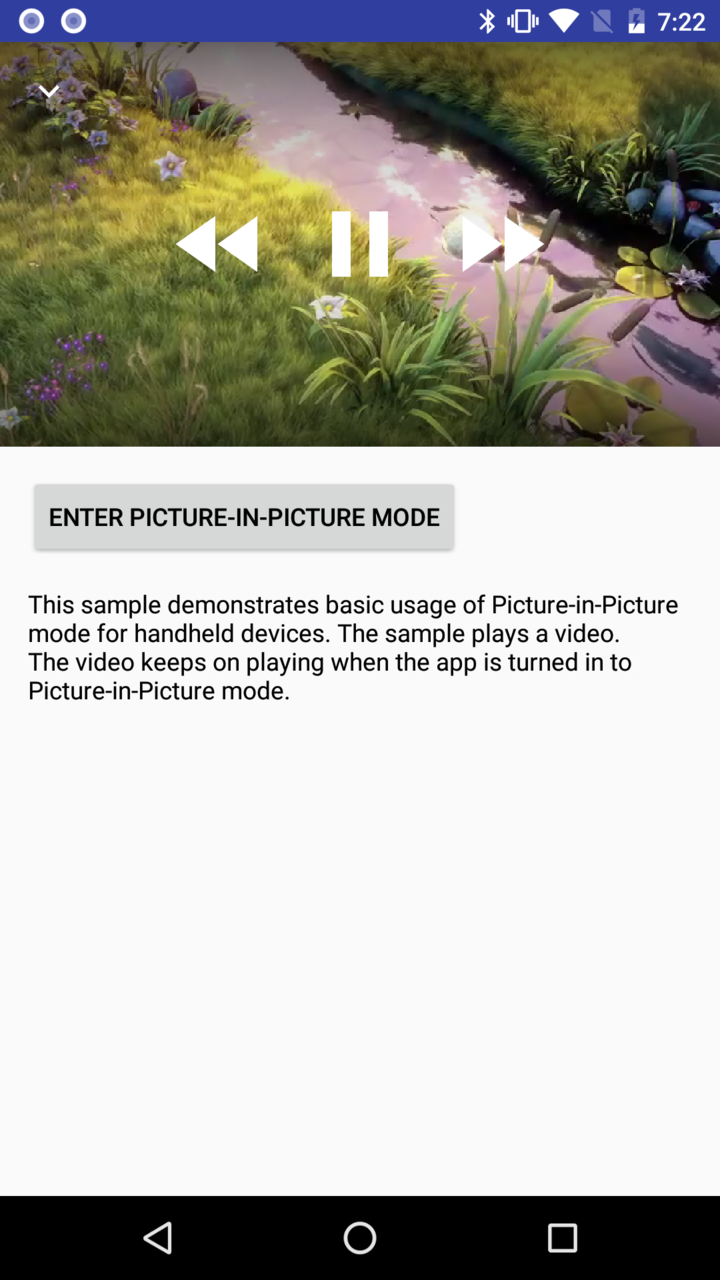 图片发自简书App
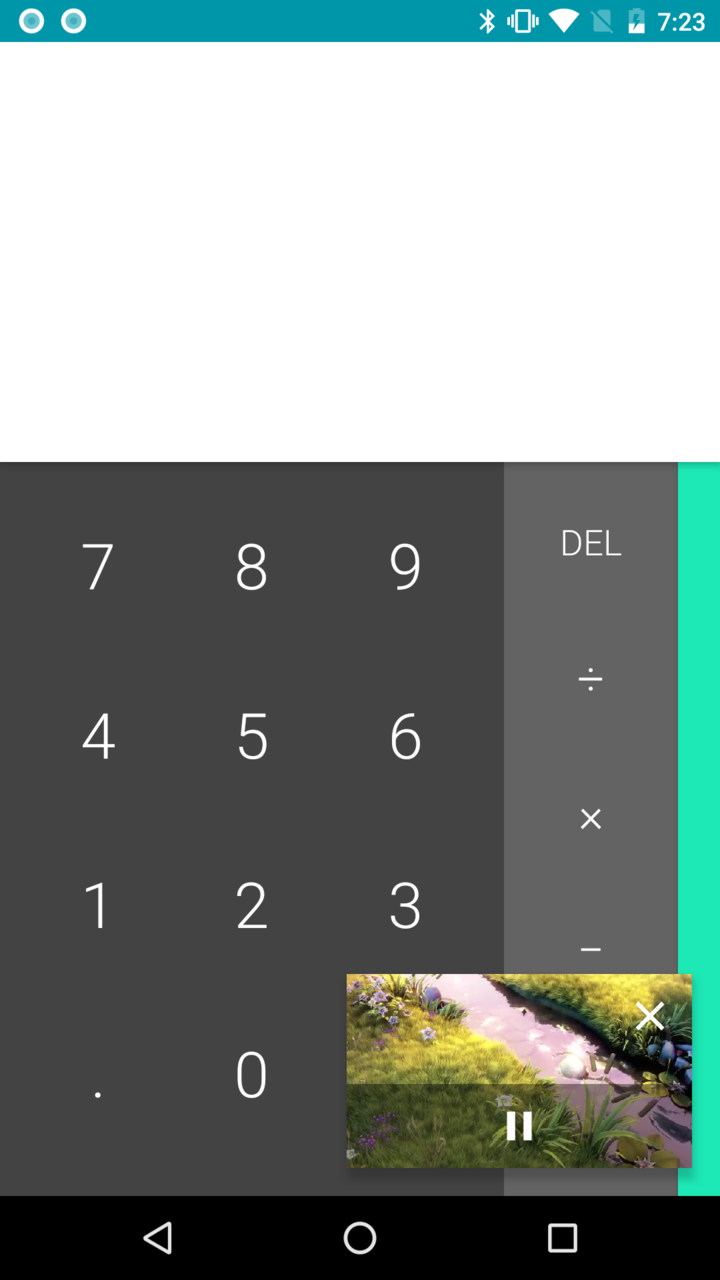 图片发自简书App
先看一下谷歌文档的介绍
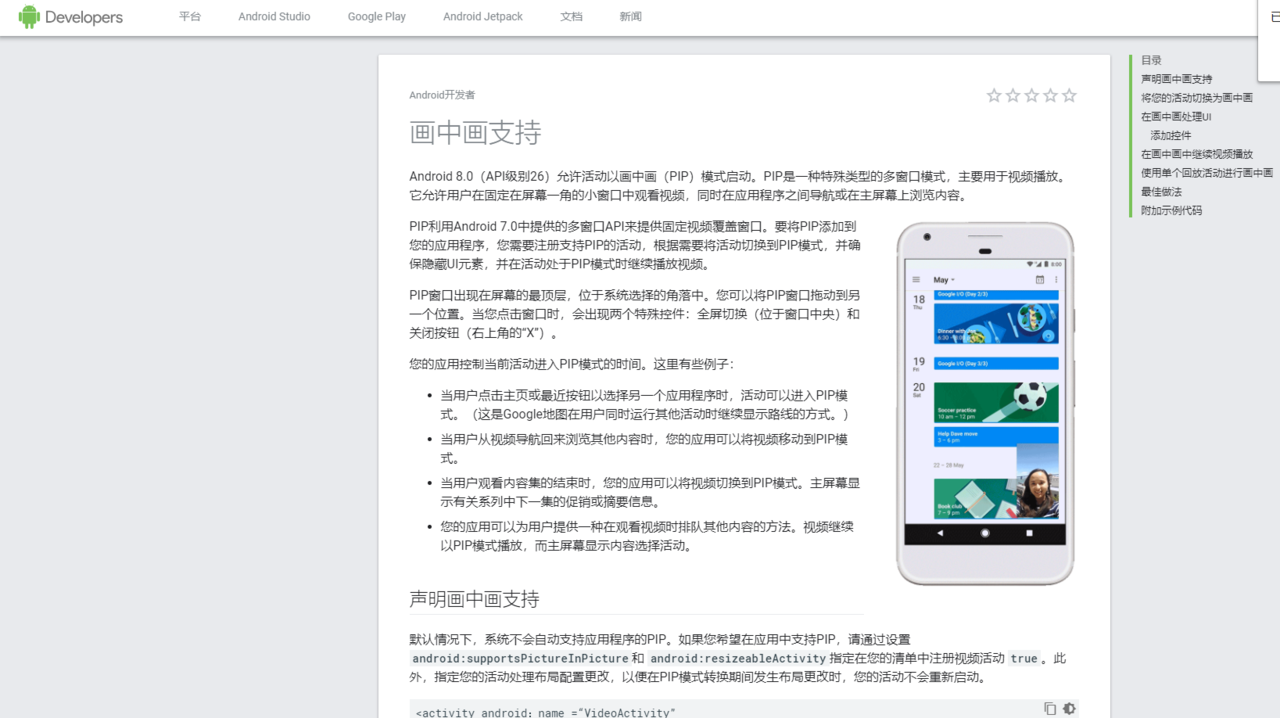 image.png
1,在清单文件AndroidManifest中声名允许开启画中画模式
android:resizeableActivity="true" android:supportsPictureInPicture="true"
android:configChanges="screenSize|smallestScreenSize|screenLayout|orientation"
android:resizeableActivity="true"
android:hardwareAccelerated="true"
android:supportsPictureInPicture="true">
复制代码
2.在activity中调用enterPictureInPictureMode()方法
/** Enters Picture-in-Picture mode. 进入画中画模式*/
void minimize() {
if (mMovieView == null) {
return;
}
// Hide the controls in picture-in-picture mode. 在画中画模式中 隐藏控制条
mMovieView.hideControls();
// Calculate the aspect ratio of the PiP screen. 计算屏幕的纵横比
Rational aspectRatio = new Rational(mMovieView.getWidth(), mMovieView.getHeight());
mPictureInPictureParamsBuilder.setAspectRatio(aspectRatio).build();
enterPictureInPictureMode(mPictureInPictureParamsBuilder.build());
}
复制代码
该方法需要传PictureInPictureParams 参数,主要用于确定我们activity需要作为画中画的宽高比,我们可以将宽高设置为videoView的宽高,这样宽高比就与视频画面一致,进入画中画前隐藏其他UI控件就行了
3,在onPictureInPictureModeChanged方法中处理画中画切换的回调
@Override
public void onPictureInPictureModeChanged(
boolean isInPictureInPictureMode, Configuration configuration) {
super.onPictureInPictureModeChanged(isInPictureInPictureMode, configuration);
if (isInPictureInPictureMode) {
// Starts receiving events from action items in PiP mode.
//开始接收画中画模式的操作
mReceiver =
new BroadcastReceiver() {
@Override
public void onReceive(Context context, Intent intent) {
if (intent == null
|| !ACTION_MEDIA_CONTROL.equals(intent.getAction())) {
return;
}
// This is where we are called back from Picture-in-Picture action items.
//这就是我们从画中画模式的操作回调的地方
final int controlType = intent.getIntExtra(EXTRA_CONTROL_TYPE, 0);
switch (controlType) {
case CONTROL_TYPE_PLAY:
mMovieView.play();
break;
case CONTROL_TYPE_PAUSE:
mMovieView.pause();
break;
}
}
};
registerReceiver(mReceiver, new IntentFilter(ACTION_MEDIA_CONTROL));
} else {
// We are out of PiP mode. We can stop receiving events from it.
// 当我们不在画中画模式时,停止接收广播
unregisterReceiver(mReceiver);
mReceiver = null;
// Show the video controls if the video is not playing
//当视频不在播放时,显示控制条
if (mMovieView != null && !mMovieView.isPlaying()) {
mMovieView.showControls();
}
}
}
复制代码
然后手势移动,关闭画中画,画中画切换回原页面等操作谷歌已经替我们做好了 需要注意画中画模式只有在Android8.0及以后才有,低版本实现画中画还是需要利用windowManger 通过addview去做
使用建议
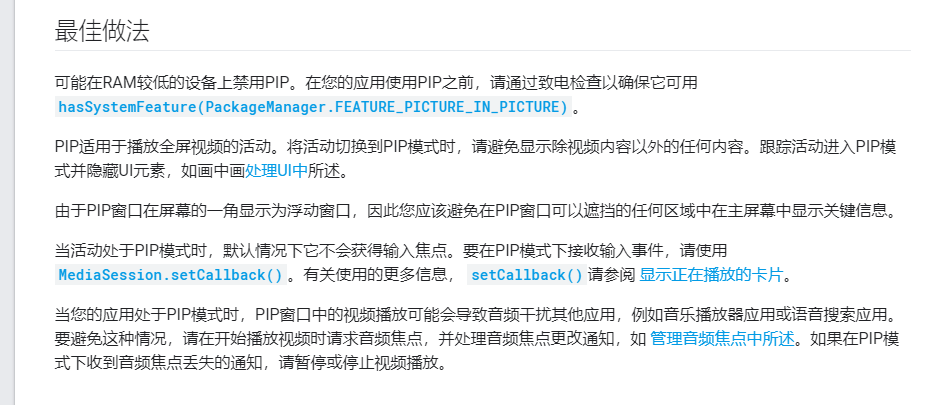 image.png





 扫一扫
扫一扫


 1316
1316

 被折叠的 条评论
为什么被折叠?
被折叠的 条评论
为什么被折叠?
 到【灌水乐园】发言





