





 本文描述了如何使用ECharts库创建一个带有颜色渐变、指定特定柱状图颜色和标签右对齐的横向柱状图,以及如何设置双Y轴。作者提供了详细的代码示例以帮助读者实现这些功能。
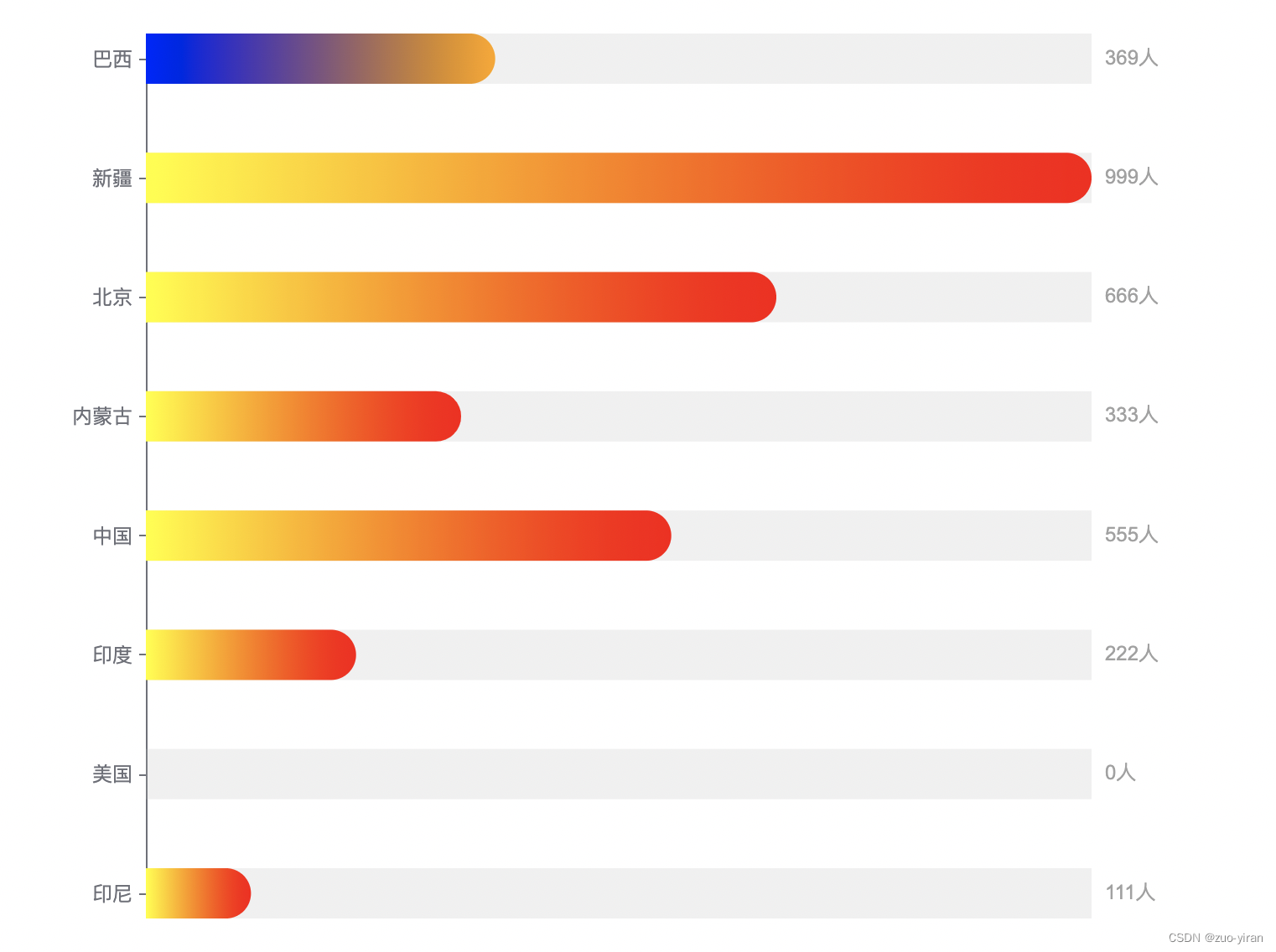
需求:用echart实现柱状图的横向展示,对指定数据的柱状图进行颜色区分,且对应标签值展示在柱状图右侧,实现文字的右对齐。
主要问题点:
1、柱状图的颜色渐变
通过colorStops设置color渐变的起止颜色,
colorStops: [
  {
    offset: 0.01, // 颜色的开始位置
    color: 'blue' // 0% 处的颜色
  },
  {
    offset: 0.99, // 颜色的结束位置
    color: 'orange' // 100% 处的颜色
  }
]
2、指定某一个柱状图颜色
给data中的指定颜色值进行特殊设置:
data: [111,0,222,555,333,666,999,
  {
    value: 369,
    label:'巴西',
    itemStyle: {
      color: 'red'
    }
  }
]
3、使用双Y轴实现标签右对齐
设置两个Y轴,一个为原本的名字,另一个为具体对应的数值。
效果如下图所示:
完整代码如下:
import * as echarts from 'echarts';

var chartDom = document.getElementById('main');
var myChart = echarts.init(chartDom);
var option;

option = {
  title: {
    text: '',
    subtext: ''
  },
  tooltip: {
    trigger: 'item' //悬浮提示框不显示
  },
  grid: {
    //绘图区调整
    x: 150, //左留白
    y: 30, //上留白
    x2: 100, //右留白
    y2: 30 //下留白
  },
  xAxis: [
    {
      show: false,
      type: 'value',
      boundaryGap: [0, 0],
      position: 'top',
      max: 'dataMax' // 保证百分比和柱状图宽度对应得上
    }
  ],
  yAxis: [
    {
      type: 'category',
      data: ['印尼', '美国', '印度', '中国', '内蒙古', '北京', '新疆', '巴西'],
      // axisTick: { // 刻度
      //   show: false // 不显示刻度线
      // },
      axisTick: {
        show: true,//隐藏刻度线
        alignWithLabel: true,//设置刻度线与标签对齐
        length: 4
      },
      axisLine: {
        show: true // 设置轴线
      },
      boundaryGap: false,// 坐标轴是否留白
    },
    {
      type: 'category',
      data: [[111], [0], [222], [555], [333], [666], [999], [369]],
      // 刻度
      axisTick: {
        show: false // 不显示刻度线
      },
      axisLine: {
        show: false // 设置轴线
      },
      axisLabel: {
        textStyle: {
          fontSize: '12',
          color: '#a1a1a1' // 坐标值的具体的颜色
        },
        formatter: function (value) {
          return value + '人';
        }
      },
      boundaryGap: false
    }
  ],
  series: [
    {
      name: '',
      type: 'bar',
      tooltip: { show: false },
      barMinHeight: 0, //最小柱高
      barWidth: 30, //柱宽度
      barMaxWidth: 100, //最大柱宽度
      barGap: '-100%', // 两条柱条重叠
      showBackground: true,
      data: [
        111,0,222,555,333,666,999,
        {
          value: 369,
          // label:'巴西',
          itemStyle: {
            color: {
              colorStops: [
                {
                  offset: 0.01, // 颜色的开始位置
                  color: 'blue' // 0% 处的颜色
                },
                {
                  offset: 0.99, // 颜色的结束位置
                  color: 'orange' // 100% 处的颜色
                }
              ]
            }
          }
        }
      ],
      itemStyle: {
        normal: {
          //柱状图颜色
          // color:'red',
          // 每个柱子的颜色即为colorList数组里的每一项,如果柱子数目多于colorList的长度,则柱子颜色循环使用该数组
          color: function (params) {
            // var index = params.dataIndex
            var colorList = [
              // 渐变颜色的色值和透明度
              // 透明度从0
              'yellow', // 到透明度1 ,如果需要不同的颜色直接修改不同颜色即可
              'red'
            ];
            return {
              colorStops: [
                {
                  offset: 0.01, // 颜色的开始位置
                  color: colorList[0] // 0% 处的颜色
                },
                {
                  offset: 0.99, // 颜色的结束位置
                  color: colorList[1] // 100% 处的颜色
                }
              ]
            };
          },
          label: {
            show: false, //显示文本
            position: ['100%', '0%'] //数据值位置
            // textStyle:{  // 单独设置标签样式
            //     color:'#000',
            //     fontSize:'30'
            // }
          },
          // 柱形图圆角,初始化效果
          barBorderRadius: [0, 15, 15, 0]
        }
      }
    }
  ]
};
myChart.setOption(option);





 扫一扫
扫一扫


 4575
4575

 被折叠的 条评论
为什么被折叠?
被折叠的 条评论
为什么被折叠?
 到【灌水乐园】发言





