


 本文通过实例解析Unity中如何使用脚本控制3D小球跑酷游戏,涉及物体运动控制、输入处理、触发器事件和游戏机制设计,适合初学者理解Unity基础和脚本编程。
讲解实例:3D物理小球跑酷
注:这并不是一个可玩性很高的游戏,因为有很多细节没做处理,是从整个游戏概况出发,掌握整体游戏脉络和脚本在制作游戏时的作用,希望通过这样一个简单的游戏案例使大家认识Unity和掌握脚本编程。
一、控制物体运动
1、新建脚本
两种方式:
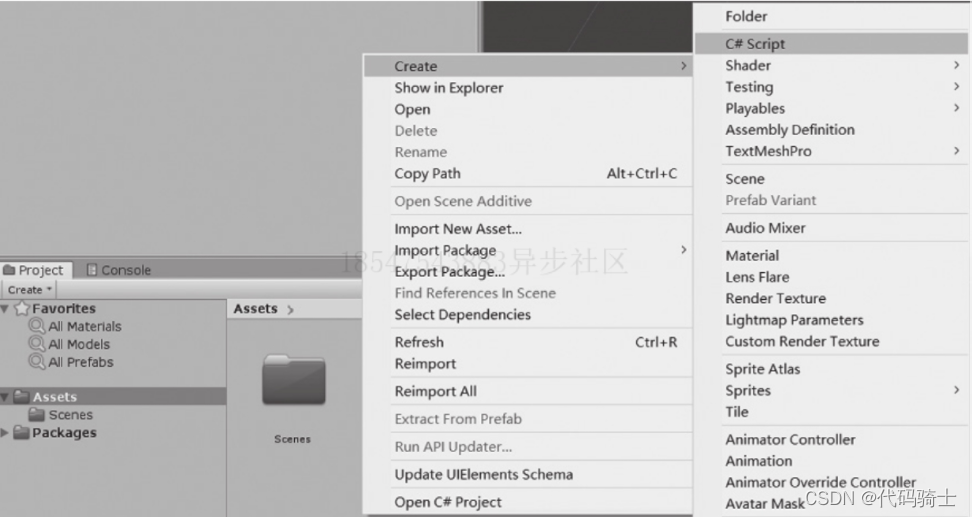
(1)Create:project->右键->create->c# script->拖拽到目标物体上
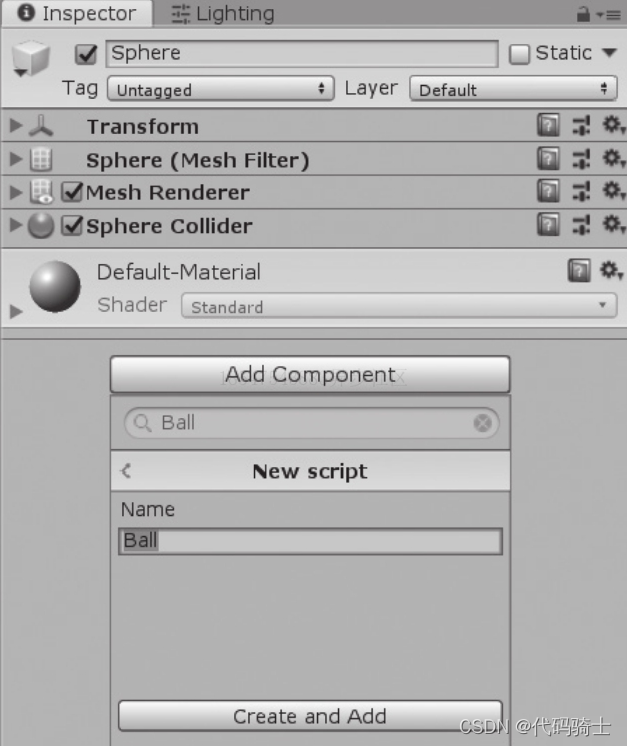
(2)Add Component: 点击目标对象->Inspector->Add Component->搜索:script(这种方法属于直接给对象添加脚本不用拖拽)
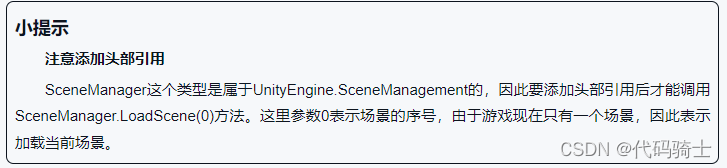
Tip:
2、Start和update事件
双击或右键打开编辑脚本会看到这两个默认函数:
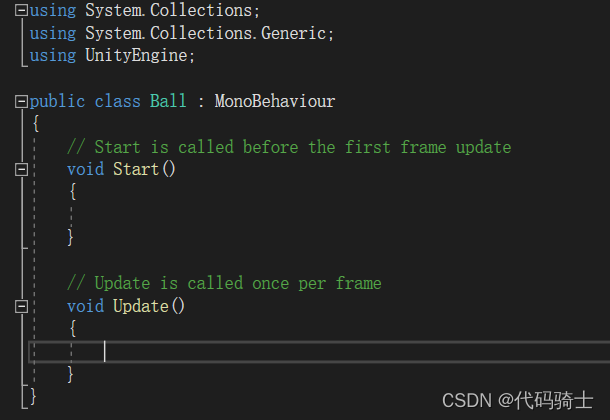
解释:
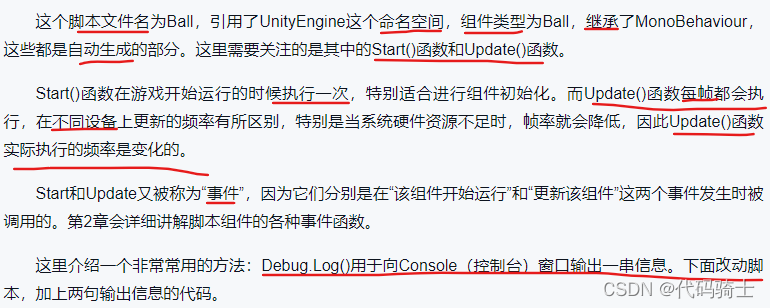
using System.Collections;
using System.Collections.Generic;
using UnityEngine;

public class Ball : MonoBehaviour
{
    // Start is called before the first frame update
    void Start()
    {
        Debug.Log("组件执行开始!");
    }

    // Update is called once per frame
    void Update()
    {
        Debug.Log("当前游戏进行时间:" + Time.time);
    }
}
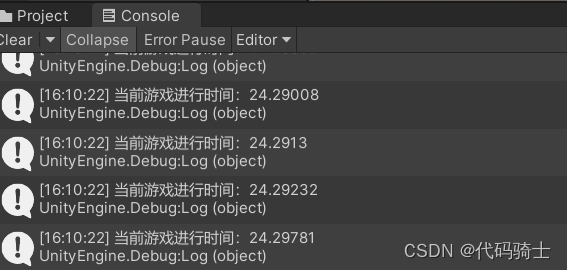
运行游戏,找到Console窗口,如果没有打开,则选择主菜单中的Window->General->Consle选项打开。
会看到如下:
 Tip:
Tip:

3、修改物体位置
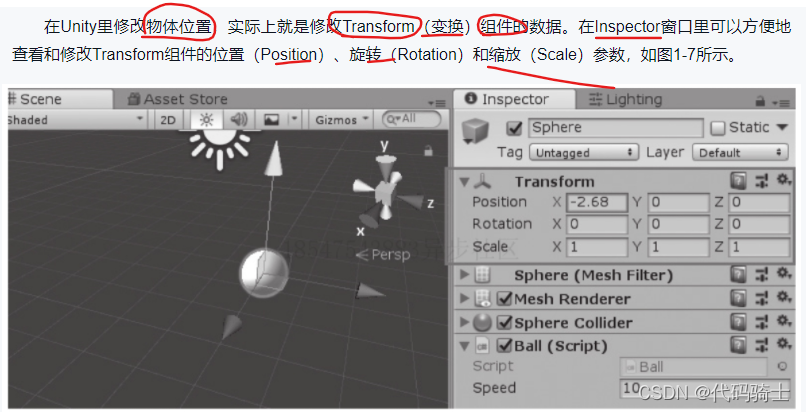
一种是直接指定新的位置。
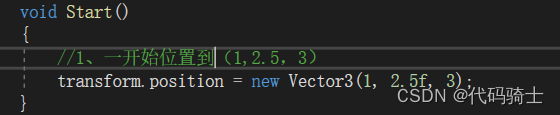
另一种是修改Transform组件中的Position有两种方法,一种是使用Translate()函数。
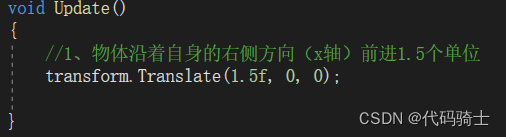
Tip:
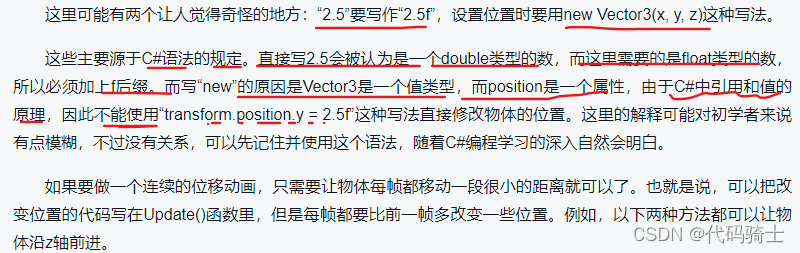

Tip:
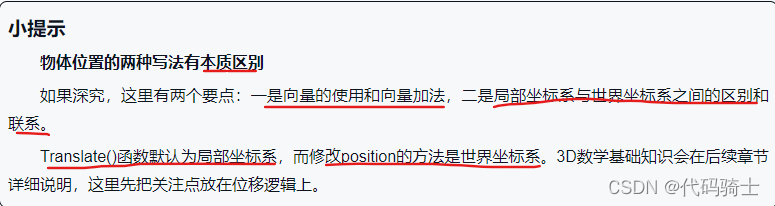
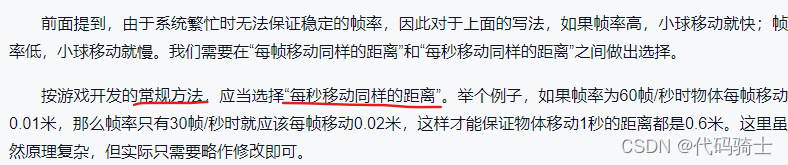
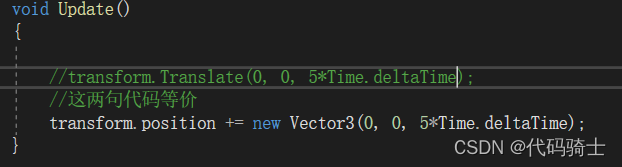

4、读取和处理输入

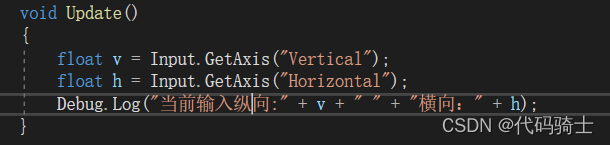
执行结果:
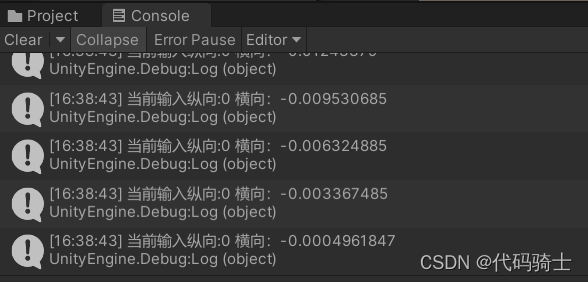
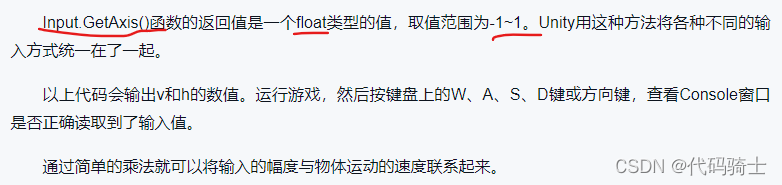
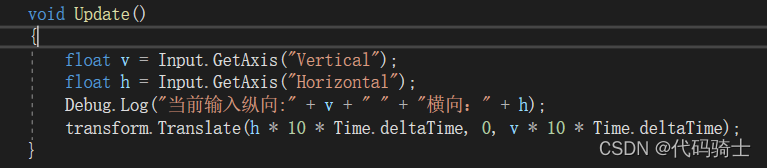
可以运行游戏进行角色移动了。
5、实现小球移动
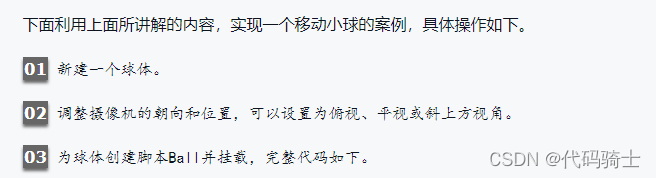
using System.Collections;
using System.Collections.Generic;
using UnityEngine;

public class Ball : MonoBehaviour
{
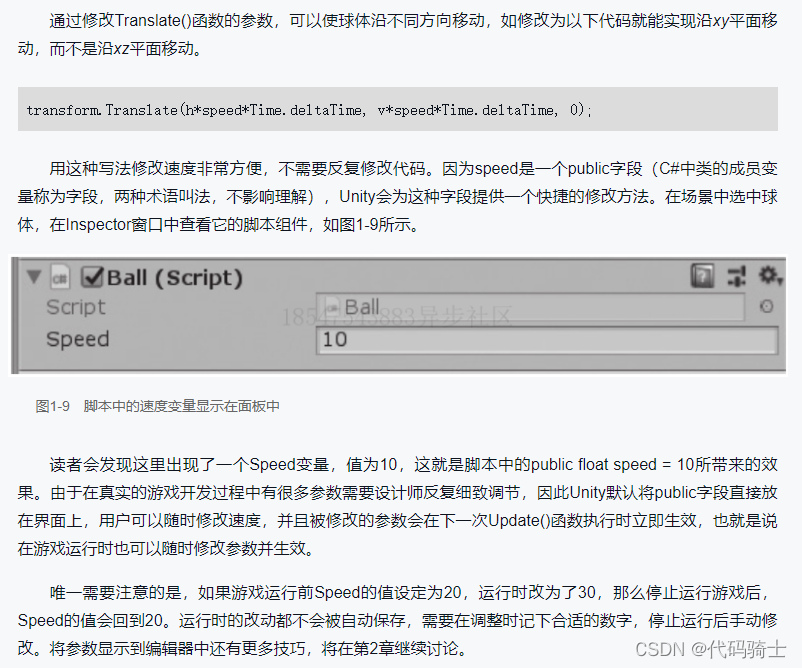
    public float speed;
    void Start()
    {
        speed = 10;
    }

    void Update()
    {
        float v = Input.GetAxis("Vertical");
        float h = Input.GetAxis("Horizontal");
        transform.Translate(h * speed * Time.deltaTime, 0, v * speed * Time.deltaTime);
    }
}
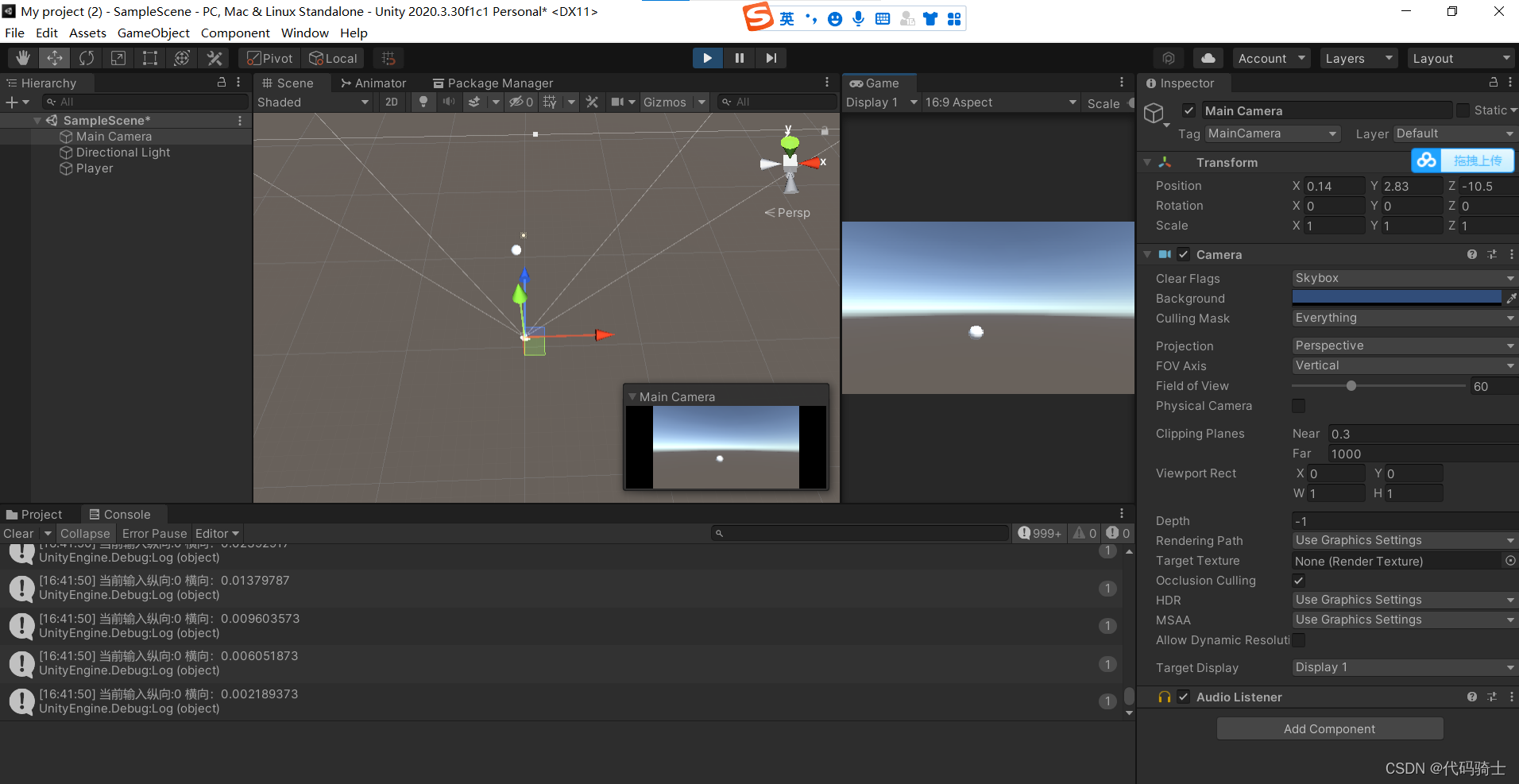
运行结果:
二、触发器事件
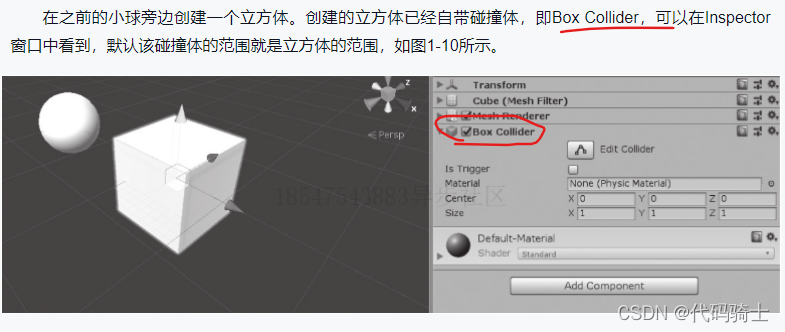
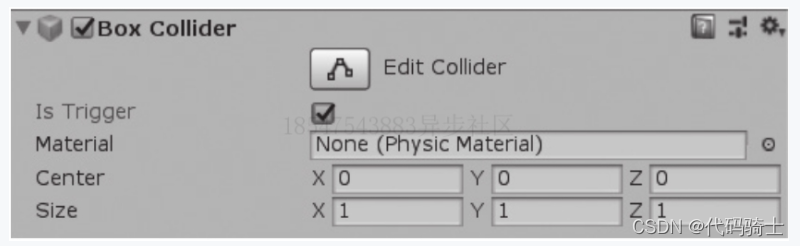
1、创建触发器


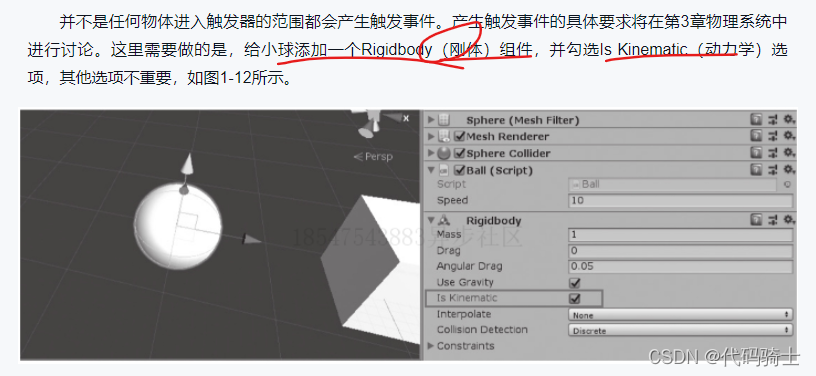
2、触发器事件函数
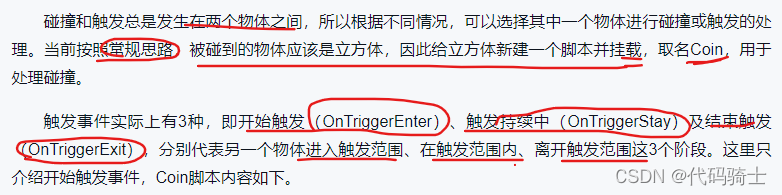
using System.Collections;
using System.Collections.Generic;
using UnityEngine;

public class Coin : MonoBehaviour
{
    //触发开始事件OnTriggerEnter
    private void OnTriggerEnter(Collider other)
    {
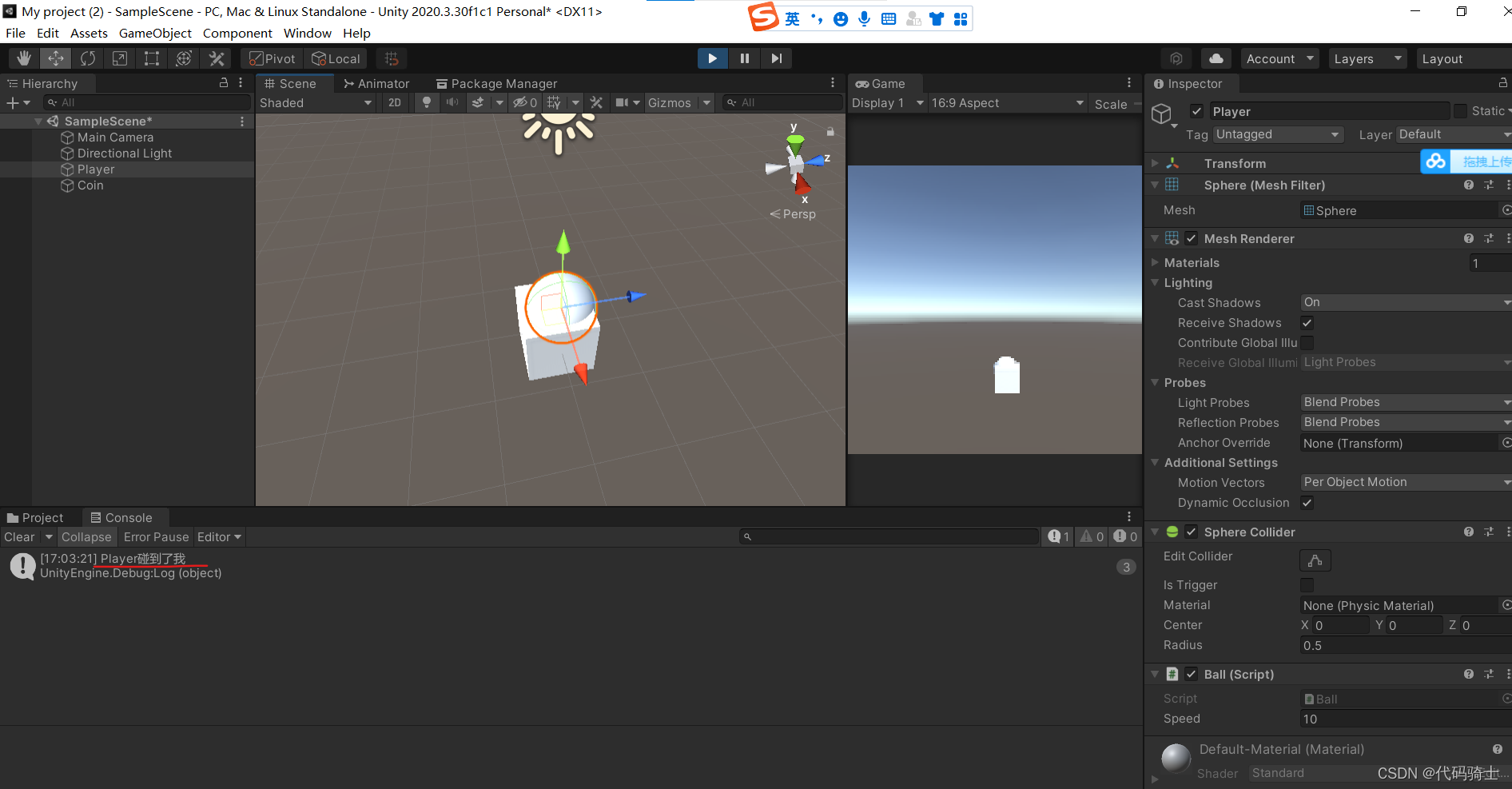
        Debug.Log(other.name + "碰到了我");
    }
}
Tip:

运行测试:
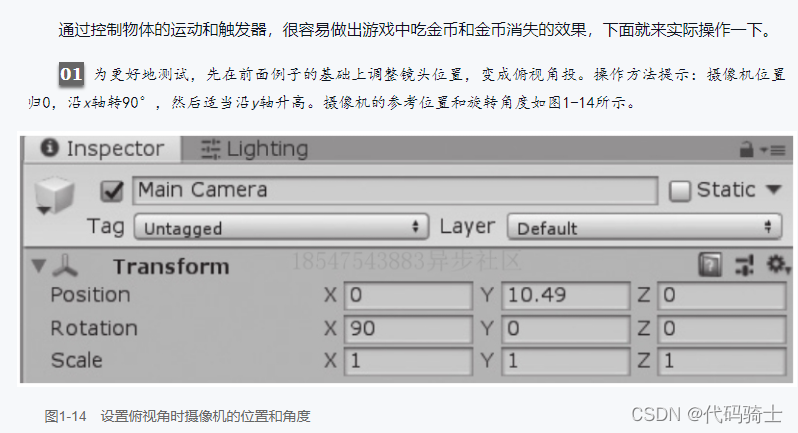
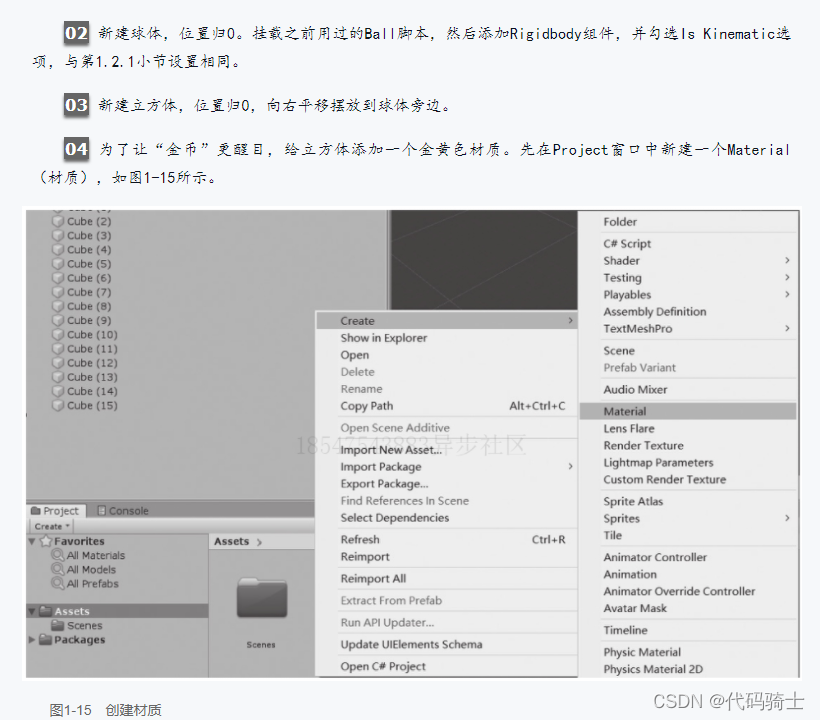
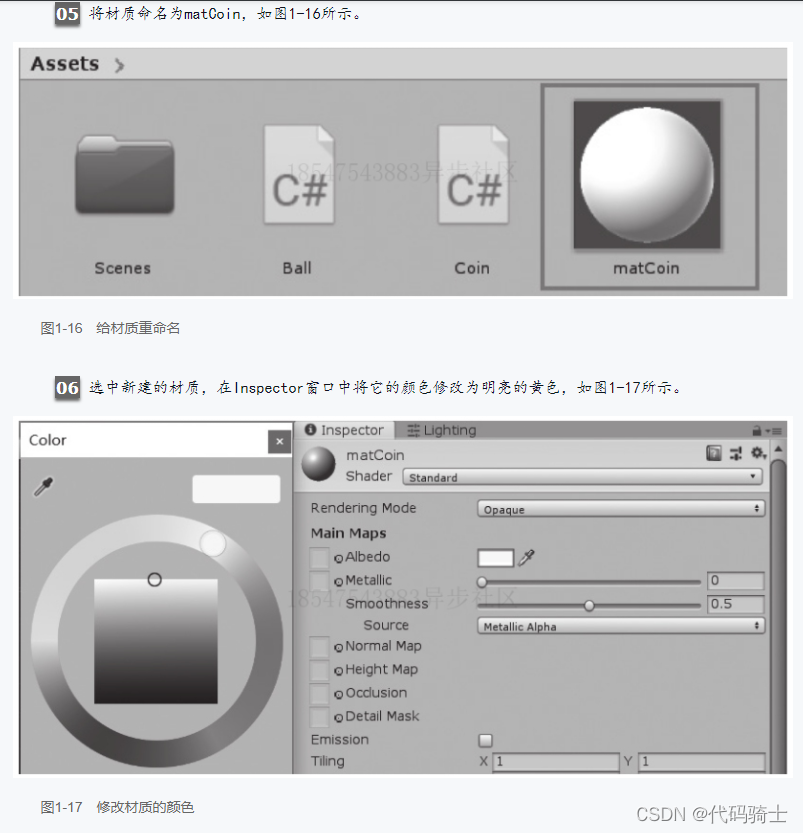
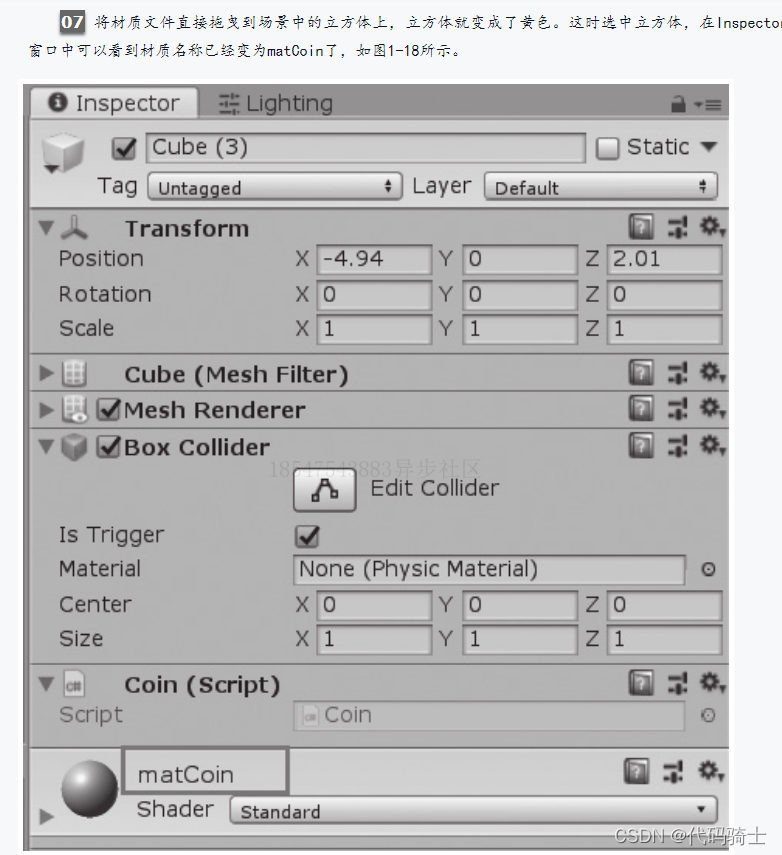
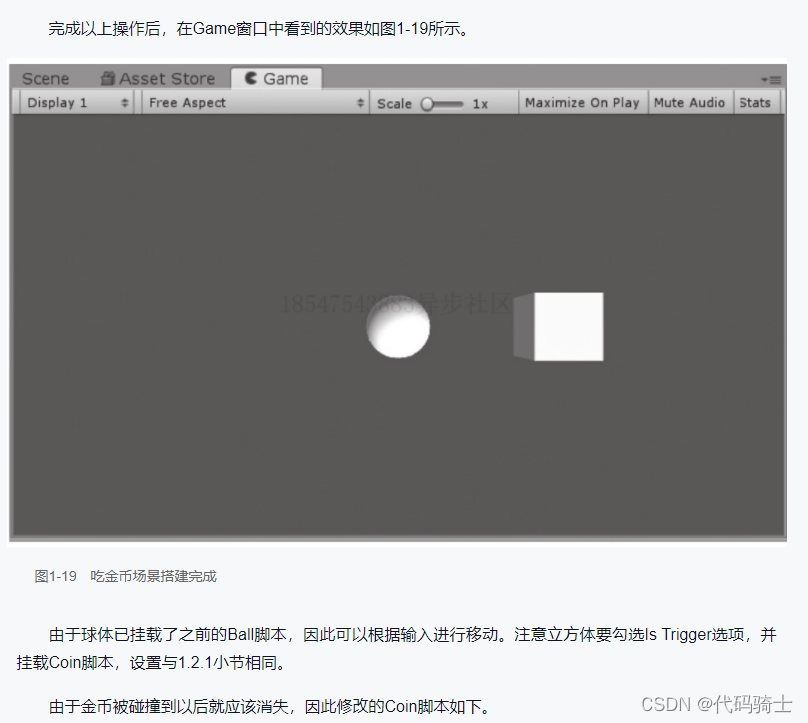
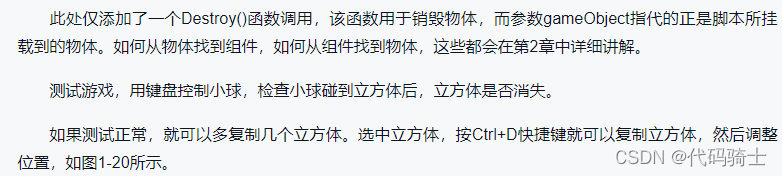
3、吃金币
using System.Collections;
using System.Collections.Generic;
using UnityEngine;

public class Coin : MonoBehaviour
{
    //触发开始事件OnTriggerEnter
    private void OnTriggerEnter(Collider other)
    {
        Debug.Log(other.name + "碰到了我");
        Destroy(gameObject);
    }
}
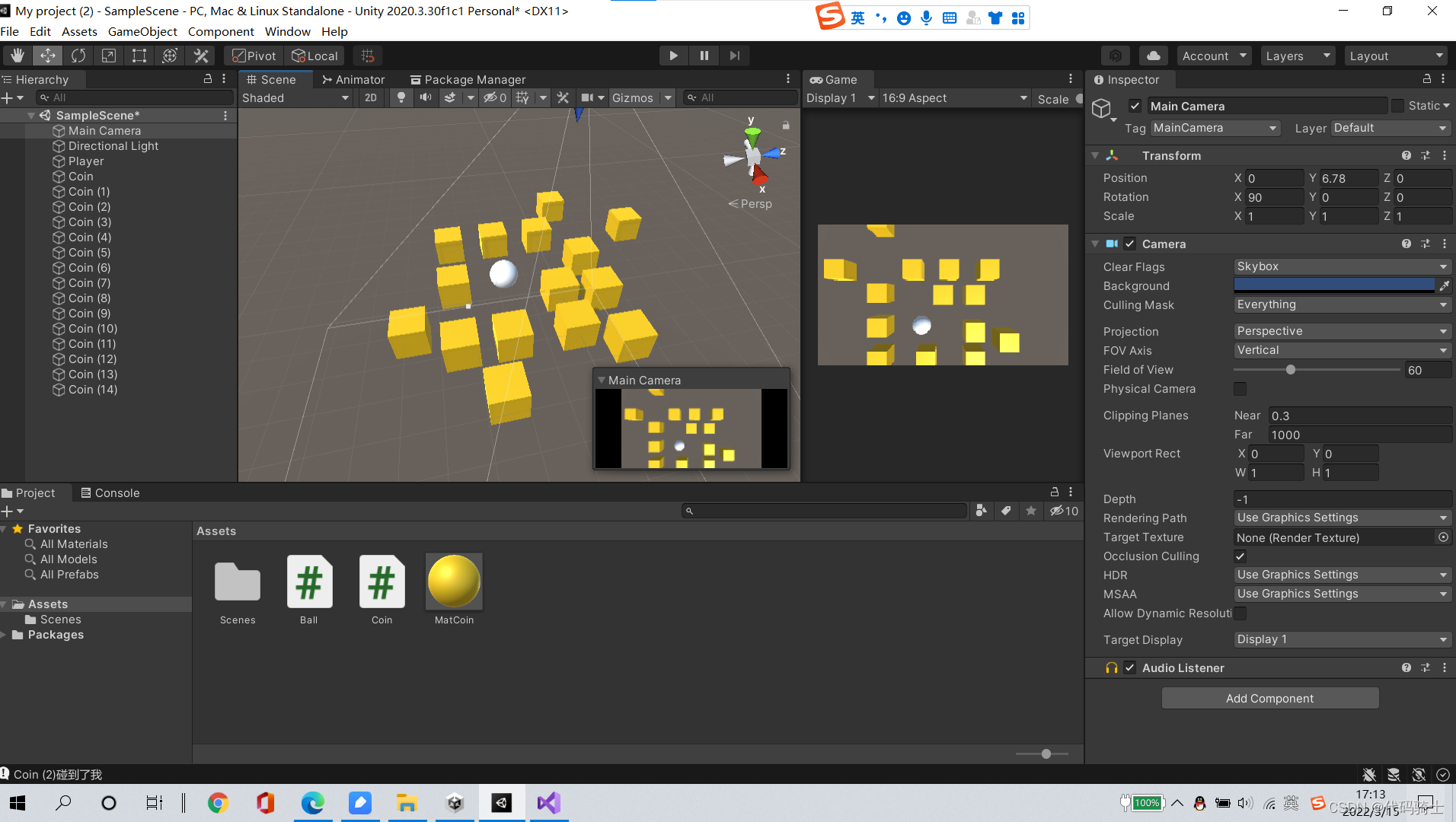
三、第一个游戏
3D物理小球跑酷
1、游戏设计
(1)功能点分析

(2)场景搭建
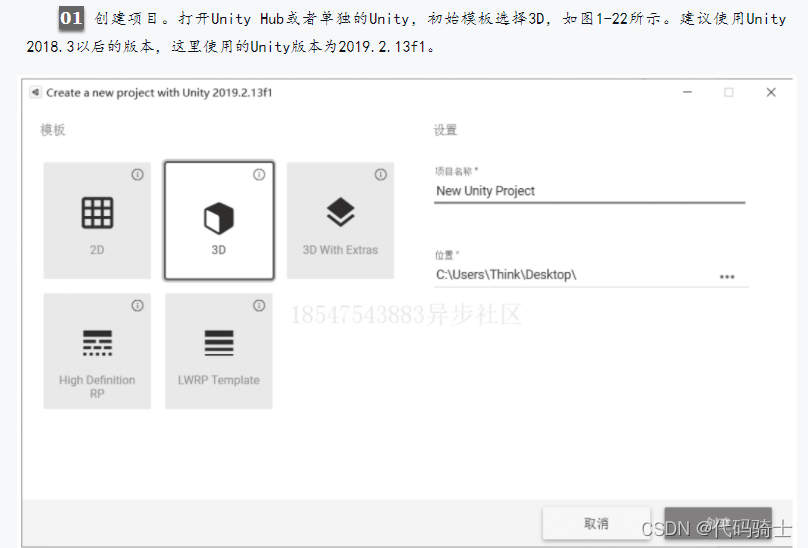
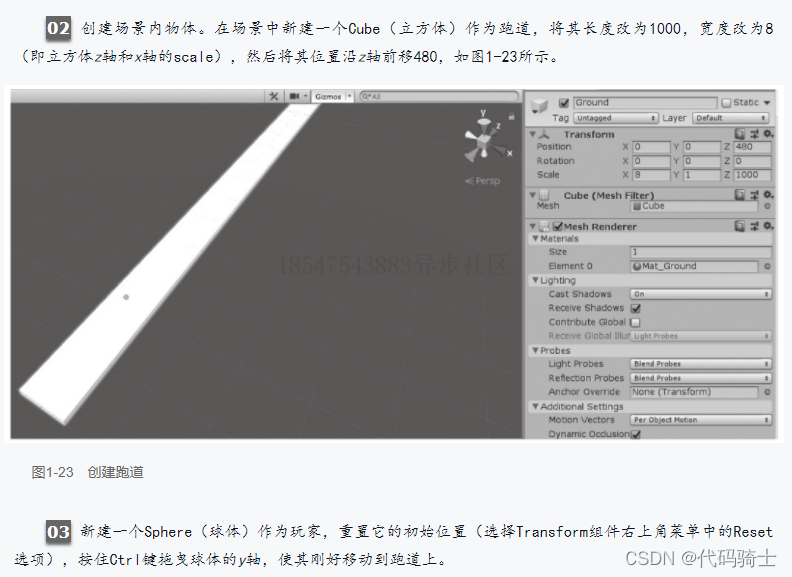
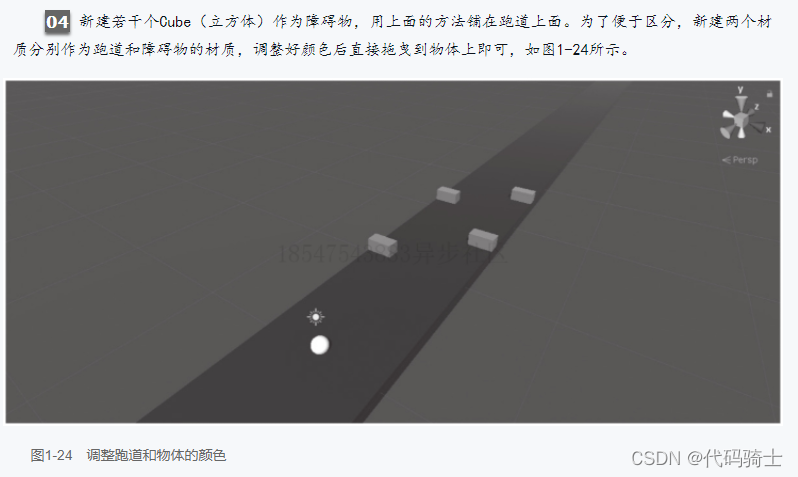
Tip:
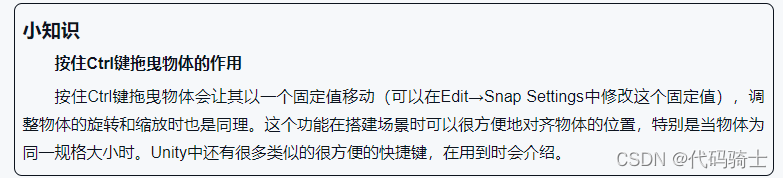
2、功能实现
(1)主角移动
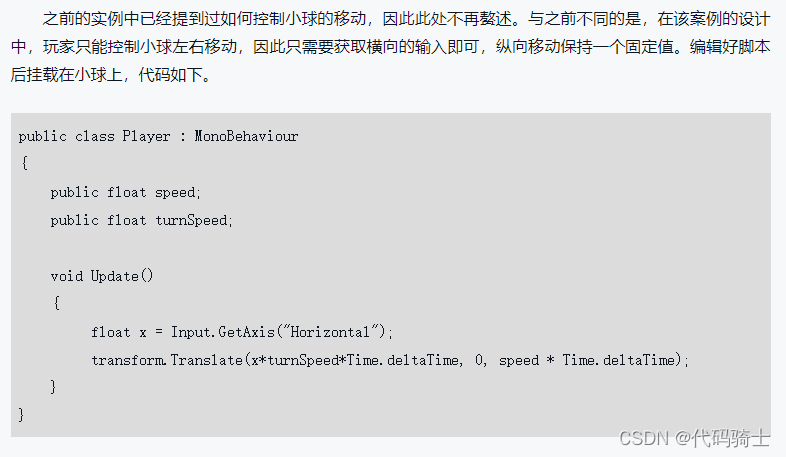
(2)摄像机移动
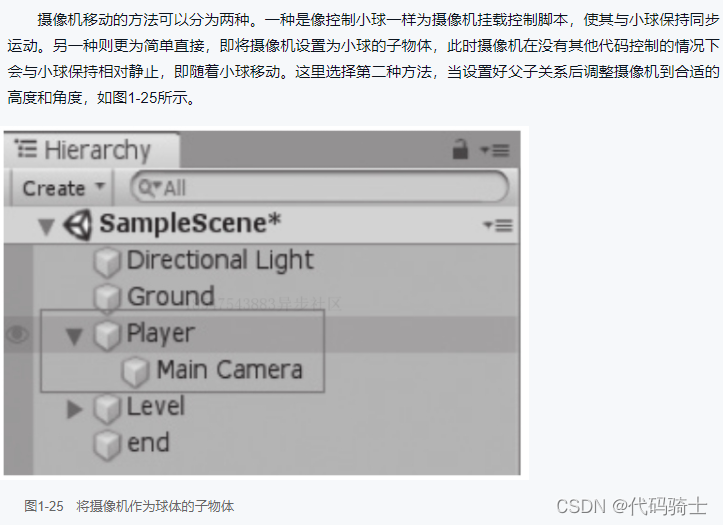
Tip:

3、游戏机制
(1)游戏失败
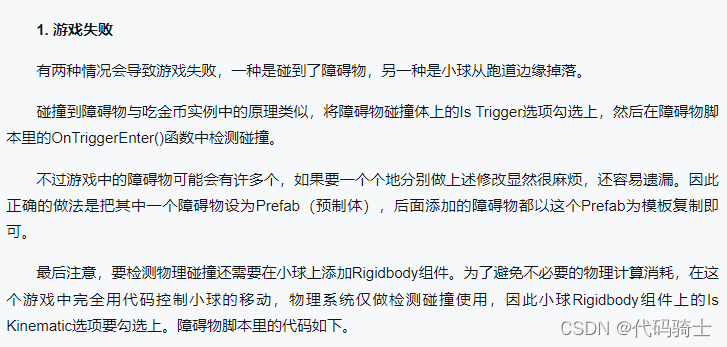
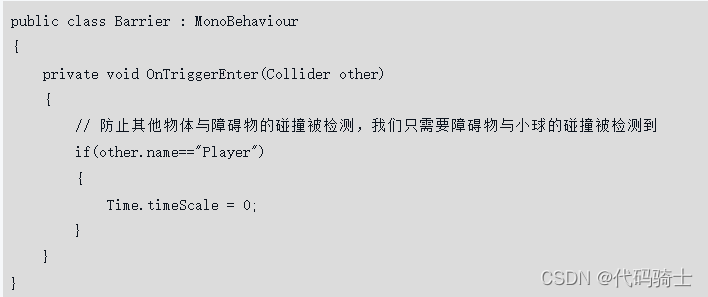
Tip:
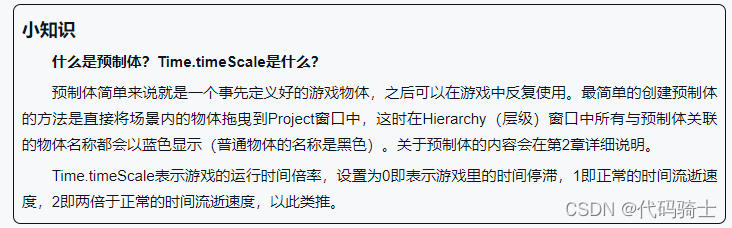
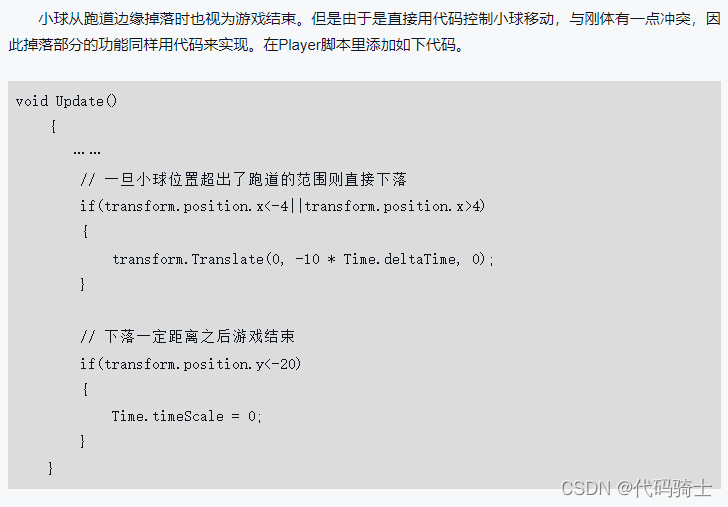
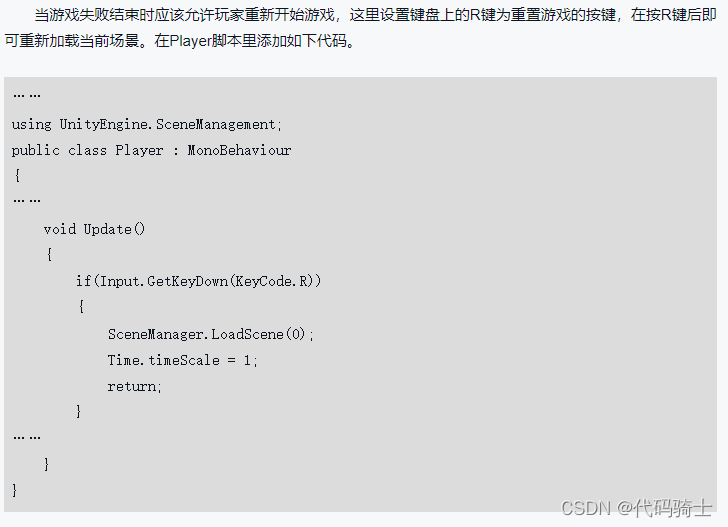
 (2)游戏胜利
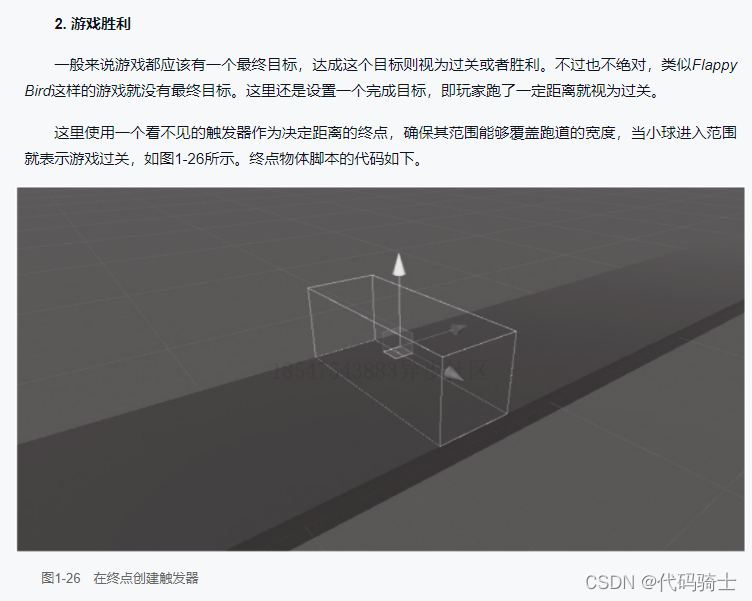
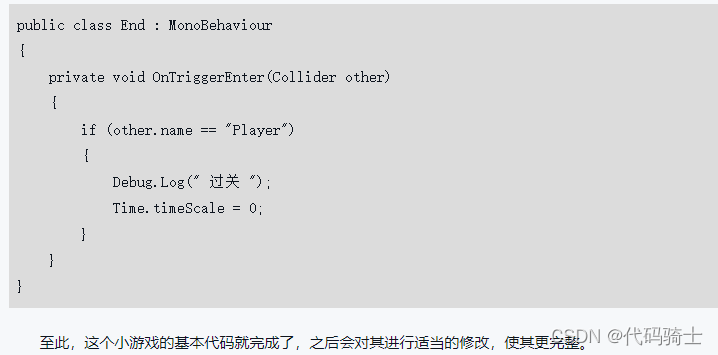
4、完成和完善游戏
(1)测试自己的游戏
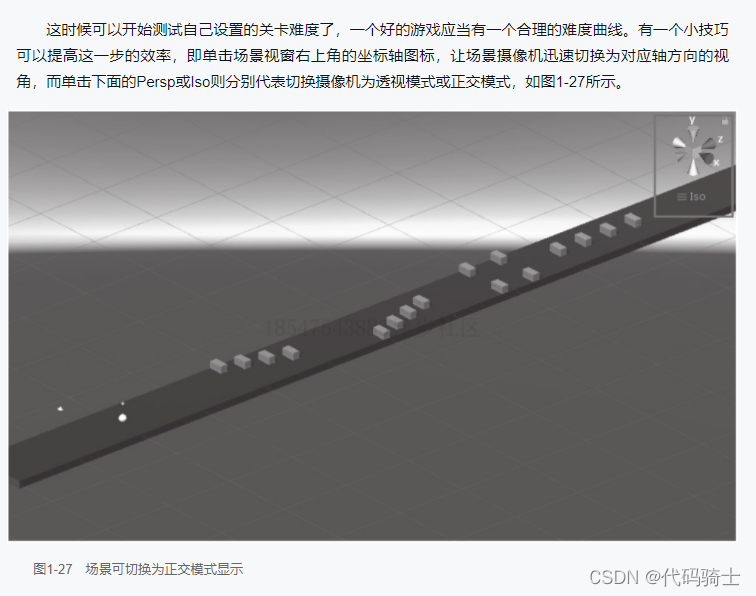
Tip:
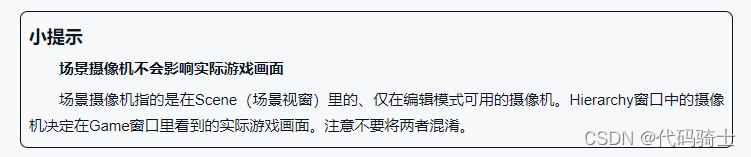

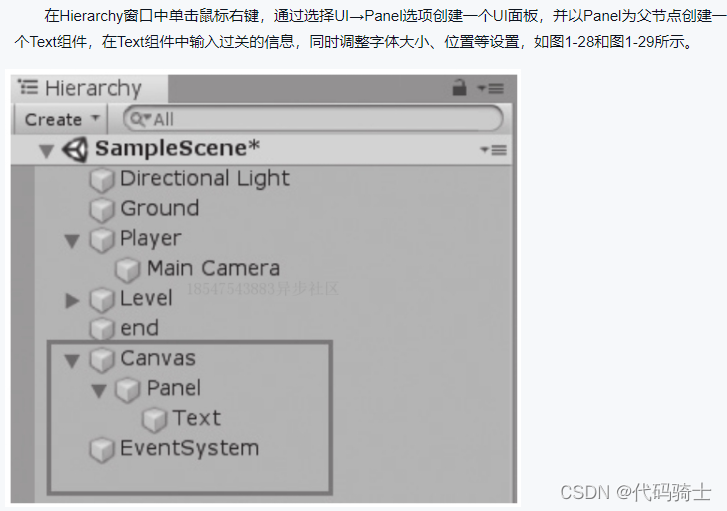
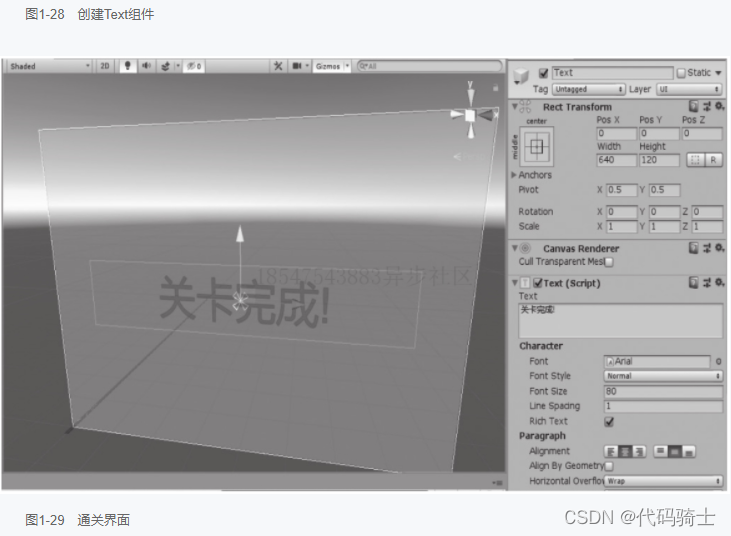
(2)加入通关UI
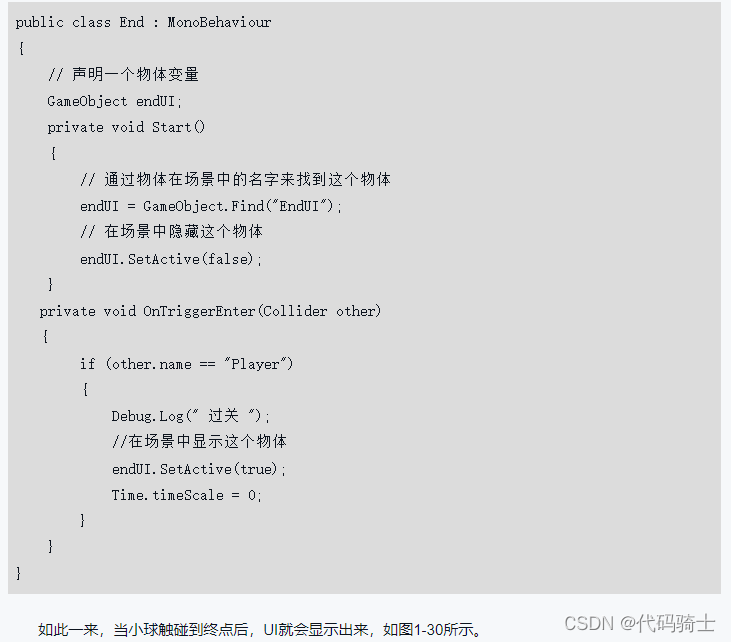
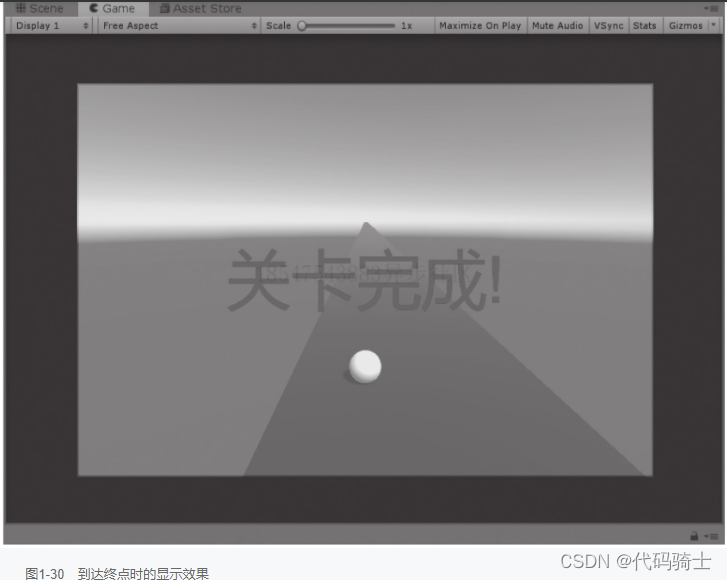
Tip: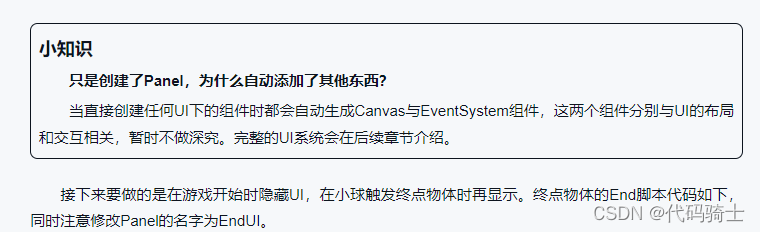
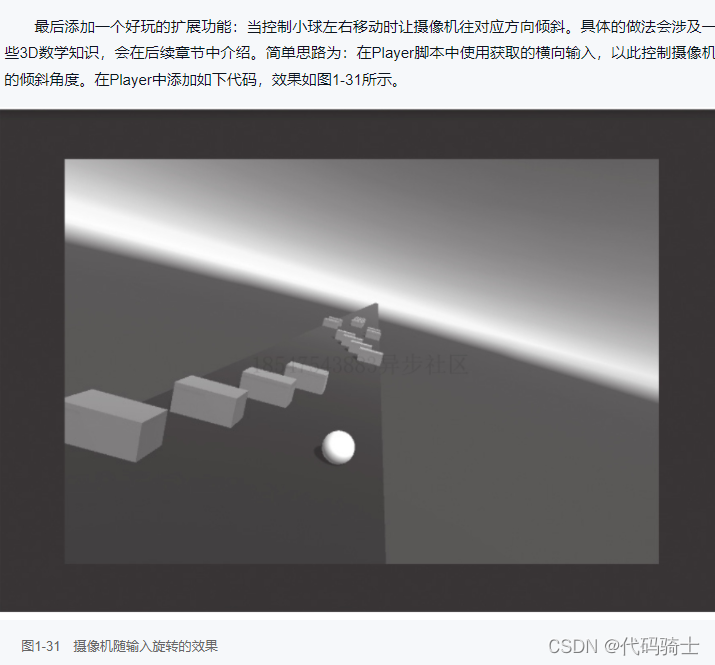
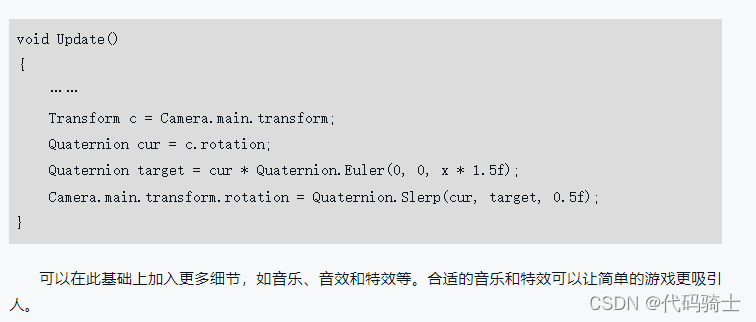
(3)加入摄像机运动效果





 扫一扫
扫一扫


 2849
2849

 被折叠的 条评论
为什么被折叠?
被折叠的 条评论
为什么被折叠?
 到【灌水乐园】发言





